

Appearance
String-to-port assignment
Once the data path has produced strings, each string needs a physical output port: a downlink port on a switch, or (on a processor with no 10G trunks) one of the processor's own 1G output ports. Select a processor in the left rail and use Inspector → String assignment. (Getting that switch wired to the processor in the first place, with its trunk cable and, for a fiber run, the SFP module at each end, is the step just above this one, in Inspector → Switches.)
The section is port-centric: every physical port is a row (always shown, whether or not a string feeds it yet), so the hardware you actually have is never hidden. Each row's dropdown picks which string flows into that port.
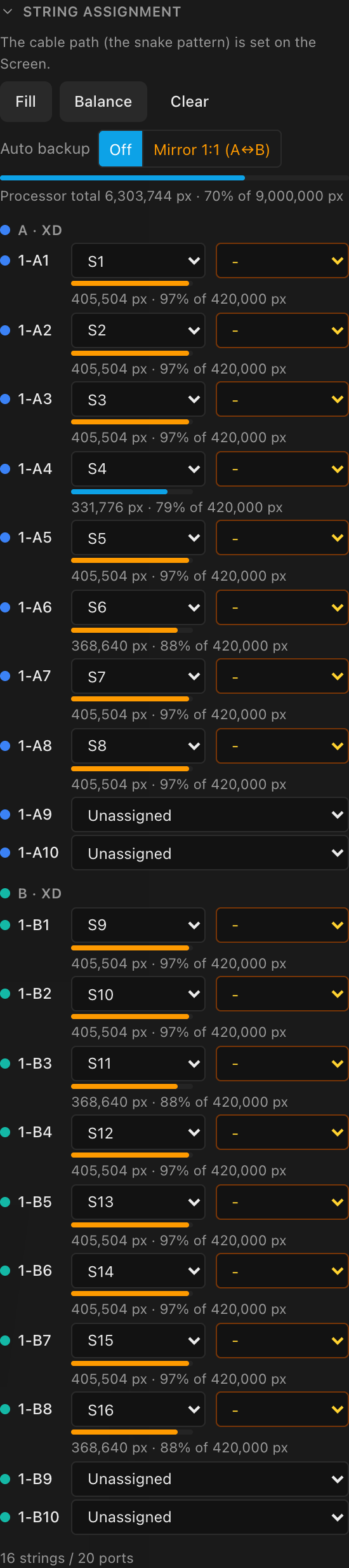
Fill, Balance, Clear, and Auto backup
The header buttons handle whole-processor assignment in one step:
| Button | What it does |
|---|---|
| Fill | Packs strings in the project browser's screen order (the order the left rail lists the screens), filling each switch's ports 1…n before spilling to the next switch. Minimizes the number of switch ports in use. The default mode. |
| Balance | Forms the fewest strings needed and evens out their pixel load, then splits them into equal-count contiguous blocks (the first run of strings to the first switch, the next run to the second, and so on), so each switch carries one unbroken stretch of the wall and no switch is a bigger single point of failure. Good for redundancy and tidy cabling. |
| Clear | Removes every assignment, and the redundancy backups with them. Strings grey out and fall back to their global S-numbers. |
| Auto backup | Not a button but a setting that keeps every assigned string backed up and follows Fill / Balance / a re-assign / Clear / a screen's Reset to automatic wiring. What it offers depends on the processor's own family: a Brompton (SX40/S8) shows Off · Mirror 1:1 (…): Mirror 1:1 is the only on-setting, unconditionally the same-processor paired trunk/port, with no target to pick; a Megapixel/NovaStar box (and a Brompton SQ200) shows Off · Mirror 1:1 · First available, and Mirror 1:1 adds a Mirror onto target: the paired switch on this same processor, or a designated backup processor. Mirror 1:1 is always locked: every backup always follows its string, so the per-string backup dropdown goes read-only (a note under it says so); turn Auto backup off to hand-pick. First available (Megapixel/NovaStar only) stays hand-editable. Off removes all backups. Choosing a setting or target (even the one already selected) re-plans every backup on the processor; if it can't cover every string nothing changes and the reason is shown. See Redundancy → Auto backup. |
How Balance decides
Balance works on two levels and, unlike Fill, it also changes how the strings are formed:
- It builds evenly-sized strings. Instead of filling each string to its limit and leaving a short tail, Balance makes the minimum number of strings the run needs and shares the panels out so every string carries a similar pixel load. (16 identical panels at a 10-per-string limit become 8 + 8, not Fill's 10 + 6: same two strings, evened out.)
- It splits them into equal-count contiguous blocks across switches. The strings keep their left-to-right order and go to the switches in unbroken runs (the first block of strings to switch 1, the next block to switch 2, and so on), so every switch (and its trunk cable back to the processor) carries about the same number, and the cabling for one region of the wall stays on one switch instead of crossing back and forth. Because the strings were evened out in the previous step, the equal blocks also carry about the same pixel load.
The aim is redundancy and tidy cabling: an even, contiguous split means losing one switch takes out the smallest possible slice of the wall, in one place. A switch's port count is still a hard limit: Balance never assigns more strings than a switch has ports. (It does not pack the faster switch harder; if you want that, assign those ports by hand.)
What Balance doesn't do
In both modes, strings that overflow the available ports are silently left unassigned rather than raising an error. Check the bottom of the list after auto-assigning a big system. (Fill leaves your strings exactly as the data path formed them; only Balance re-forms them into even sizes as described above.)
Both auto modes only ever use panel-facing ports, the same ports the list below shows you. On a cascaded system (a Brompton SQ200 → QD-S → XD chain, say), the QD-S's own 10G ports carry the link to the next switch, not a panel run, so Fill and Balance skip them exactly as the manual dropdowns do. Until you add a switch that actually terminates at panels, Fill and Balance have nothing to assign and do nothing. Add the XD (or another panel-facing switch) and its ports appear, ready to fill.
A backbone switch's panel-facing ports still have to match the receiver card actually plugged into each string. Fill never wires a 1G-only card (a Brompton R2/R2+) straight into a 10G port, even when that same switch also carries 10G-capable strings elsewhere on the wall (a G1 receiver, direct on the QD-S). A string whose card can't run the port's speed is skipped for that port and tried against the next, slower-tier one, landing on a cascaded leaf switch if one exists, or staying unassigned if none does. The manual port dropdown enforces the same rule: a port only offers the strings whose receiver card can actually drive it.
Both auto modes are also in the command palette (Auto-Assign Strings (Fill) / (Balance), Clear String Assignments), and the mode you used is remembered per screen.
Assigning by hand
Every port is a row, grouped under its switch (A · XD, B · XD) or listed flat as the processor's direct outputs, whether or not a string feeds it yet. Each row shows a color dot, the port's full label with the processor tag (1-A1, 1-B3 for switched ports, 1-3 for a direct output), and a string dropdown; once a string feeds the port, a backup dropdown and a capacity bar appear alongside.
The backup dropdown only lists ports of the same kind as the primary: another panel-facing port, never an upstream switch's cascade port. On a cascaded system (a Brompton SQ200 → QD-S → XD chain, say), the first XD's 1-A1-1 port can back up to another XD port, but never to one of the QD-S's own 1-A1/1-A2 ports; those feed the next switch tier, not a panel. See Redundancy for the full candidate rules per pairing mode.
On a processor fed straight from its 1G outputs that has a designated backup processor, the backup dropdown also lists the backup processor's free 1G outputs, tagged with its own tag (1B-1, 1B-2…), after this processor's own spare ports. See Redundancy.
The string dropdown lists Unassigned plus every string, each named by its project-wide S-number (S1, S2, S3…): the same number that string carries on the 2D/3D canvas, the panel Inspector, the on-wall test pattern, the wiring sheets and the cable CSV. A string that already feeds another port is annotated with where it currently lives, e.g. S3 · on 1-A9, so you can see what you're moving. Picking a string:
- moves it to this port, freeing whatever port it was on, and
- displaces any string that previously fed this port back to unassigned.
The moved string keeps its backup feed and link speed. Choosing Unassigned clears the port.
A port that another string has reserved as its redundancy backup can't take a primary: instead of a dropdown it reads Backup for S3, naming the string by the same S-number (free it by re-pointing that string's backup elsewhere; see Redundancy).
A port with no data feed can't take a string either. It reads No data: needs this switch's second trunk. This happens on a Novastar CVT4K-S running a single trunk: its ports 9–16 only work once the switch's second trunk is connected (see Switches & trunk cables). Fill and Balance skip those ports too, and the inventory footer counts only live ports. A string an older project already placed there keeps its dropdown so you can move or clear it, with a red ! icon beside it. Hover over it, or tap it, to see why it isn't getting data.
Assignments follow the panels, not the numbering
An assignment is remembered by the string's first panel, not by its S-number. The numbers are just the current order across the whole project, so they shift whenever an earlier screen changes, but the port stays with the same run of panels through all of it: adding a row to another screen, disabling a panel, resetting another screen's manual wiring, reordering screens in the project browser, even a project that comes back from the cloud with its screens stored in a different order. The only edit that touches an assignment is rewiring that run itself: split it and the port (and its backup) stays with the half that keeps the first panel, while the new tail shows as unassigned; merge it into a run that already has a port and its own assignment is dropped; merge it into a run with no port and it moves over to feed the combined run.
The inventory footer
A footer tallies the hardware (N strings / M ports) and turns red with · need K more when there are more strings than ports to carry them. That's the cue to add a switch (to expose more downlink ports) or move to a processor with more outputs.
The capacity readout
Under each assigned port sits a live pixel-budget verdict:
- a utilization bar: blue, amber past
85%, red when over, and - a text readout:
123,456 px · 47% of 264,000, with· overappended when the port is past its ceiling. Adding a backup never changes this number: a backup costs you a second port, not any of the primary's pixels.
Port capacity: the pixel ceiling
The per-port ceiling comes from the processor's output-capacity table at the canvas's selected Bit depth and Frame rate (an exact row match; change either and the ceiling changes). A switch downlink port additionally clamps to the switch type's own per-port maximum. When the equipment record carries no explicit numbers, a default ceiling of 650,000 px applies.
The processor's Signal section shows the same numbers at a glance: Port capacity (one of the box's own ports, stated at its link speed: Port capacity (10G) on a trunk-only box, with a Per tile link (1G) line for the per-string figure) and Processor capacity (the whole box), next to the Bit depth and Frame rate selectors that drive them. See Choosing a processor & signal settings.
Processor capacity: the whole-box ceiling
Beyond each port's own limit there is the total the processor can carry as a whole. Two figures compete for that, and the smaller one wins. The Signal section's Processor capacity read-out says which with a · port limit or · box limit suffix:
- The port limit is every output port's ceiling at its own link speed, added up. A Megapixel HELIOS with its 8× 10G fibre card at 12-bit/60 carries 8 × 4,019,000 = 32,152,000 px: the manual's per-trunk figure times its eight trunks, not the 1G figure times eighty. Because it is built from the port ceiling, it moves with Bit depth and Frame rate exactly as the port ceiling does.
- The box limit is the manufacturer's published load capacity for the whole controller, and it does not move with bit depth or frame rate. Novastar publish 9,000,000 px for the CX40 Pro and MX40 Pro, 6,500,000 for the MX30, 3,900,000 for the MX20 and KU20; Brompton 4,500,000 for the Tessera S8, 9,000,000 for the Tessera SX40 and 36,000,000 for the Tessera SQ200; Megapixel 35,000,000 for the HELIOS.
On most boxes that publish a load capacity, the box limit is the one that bites. A CX40 Pro's six 5G ports and its 40G trunk add up to 41,316,800 px at 8-bit/60, but the box drives 9,000,000, so it reads 9,000,000 px · box limit at every bit depth and frame rate, because the trunk keeps the port sum above the box. A Tessera SX40's four 10G trunks sum to 16,800,000 px at 10-bit/60 against its 9,000,000 px box. A box that publishes no load capacity (an MX2000 Pro, an MCTRL4K, the VX series) keeps the port figure: an MX2000 Pro with one 8× 5G card reads 18,330,496 px · port limit at 10-bit/60.
The section shows a Processor total bar under the port list, the pixels assigned across every output against that ceiling, with the same colours as the per-port bars (blue, amber past 85%, red when over). Switches are where a design outruns it: a trunk fanned out to more downlink ports than it has 1G-equivalents behind it can leave every individual port bar green while the processor as a whole is asked for more than it can carry.
The bar appears whenever either figure can be stated: a capacity row for the current bit depth and frame rate, or a published box limit (a modular chassis with no output cards fitted yet still shows its box figure). Where neither exists, LED.FYI shows nothing rather than guess a number and warn you about a design that is actually fine.
Rectangle loading: processors that count the whole box
Most processors charge a port only for the pixels of the panels on its string. Some charge it for the whole rectangle around those panels on the processor canvas instead: blank space inside that rectangle, and any other port's panels that sit inside it, use up the port's capacity too. The port is in effect sending the video for the entire rectangle down the cable, not just each panel's own pixels.
In the built-in library, two processors work this way:
| Processor | Port load |
|---|---|
| NovaStar MCTRL 660 Pro | The rectangle around each string's panels |
| NovaStar MCTRL4K | The rectangle around each string's panels |
| Every other processor | The panels' own pixels (Brompton processors never use the rectangle) |
The rectangle is the tightest box that fits around the string's panels, measured from that string's own top-left corner, not from the corner of the canvas. On one of these processors:
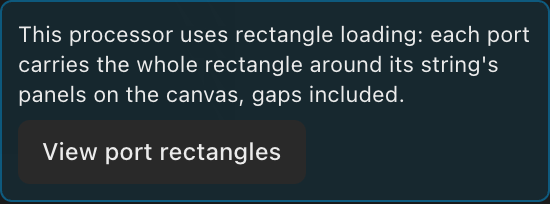
- String assignment opens with a notice saying the processor uses rectangle loading, and a View port rectangles button. Click it to switch to the 2D Mapping workbench with every port's rectangle outlined; the button then reads Hide port rectangles.
- Each port's capacity readout and the Processor total count the rectangles, so they can read higher than the panels' own pixels add up to.
- Automatic string splitting measures the rectangle too, so a string the app splits for you never comes out over its port's capacity. See Data path & string splitting.
Pick a cable path that runs in tidy rows or columns
A tightly packed string loads exactly its own pixels, but a string that snakes part-way onto a second row is charged for both full rows. On a screen 9 panels wide where 8 panels fill a port, a row-by-row path ends up alternating a string of 8 and a string of 1. Change the screen's start corner or direction, or its width, so each string covers a clean rectangle, and you'll need fewer ports.
Over capacity warns, never blocks
After a Fill/Balance (or any assignment edit) that leaves a port past its ceiling, a Port over capacity toast appears with a Show processor shortcut, and the section shows a persistent red rollup (N ports over capacity) for as long as the condition lasts. A processor past its whole-box ceiling adds a second red line: past the port limit it tells you more pixels are assigned than all of its output ports can carry and suggests the two ways out (move panels to another processor, or drop the bit depth or frame rate); past the box limit it says the box cannot drive that many pixels in total, and that bit depth and frame rate will not help; only moving panels will. Nothing is ever blocked: you can plan an oversubscribed port deliberately. Exactly at the limit counts as OK; only strictly over triggers the warning.
Direct outputs vs switched
On a processor with 10G trunks, strings are assigned to switch downlink ports and take the trunk's letter and color. On a processor with only 1G outputs, the Switches section reads "Direct outputs: this processor has no 10G trunks; strings feed its 1G output ports directly (no switches)", ports are labeled with bare numbers, and strings draw in gray. A custom processor you created with Fixed I/O works the same way: its Outputs count is the number of 1G ports listed here. See Switches & trunk cables.
Unassigned strings
A string with no port has no cable label and no trunk color: it renders gray with its project-wide S-number (S1, S2…), the number it also shows in the String-assignment dropdown, so the canvas and the dropdown always name the same cable. After Clear (or after removing a switch that carried assignments) the overlays visibly grey out and renumber; the wiring itself hasn't changed, only its port identity. See Port, string & cable labels.
When the section is gated
- No processor type assigned: the Wiring area shows "Assign a processor type above to wire its outputs." Pick a processor first: Choosing a processor.
- Modular processor with no output card: a card-slot processor with zero output cards fitted exposes no ports, so the whole Wiring area (string assignment, switches, trunks) is replaced by a "No output card installed…" hint until you fit an output card. See Modular processors: cards & chassis slots.
- Switched processor with no switches yet: the section prompts "Add a switch to expose ports for assignment."
Multi-processor screens
A string that runs across a screen boundary belongs to the screen it starts on, and is assigned to a port once, from that screen; the far stretch carries the same port label rather than appearing as a second, unassigned string.
When a screen spans several processors, each processor's String assignment lists and assigns only the strings formed from its own panels. Each of those strings has its own S-number: the numbering carries on from one processor to the next, so no two cables on the screen share a number. Port labels carry each processor's tag (1-A1, 2-A1), so the two processors' ports never read alike either. How a screen's panels get split across processors in the first place is covered in Multi-processor screens.