

Appearance
The desktop app
LED.FYI ships as a native desktop application for macOS, Windows, and Linux. Download it from led.fyi/downloads and sign in with your LED.FYI account. It is not a separate product or a reduced "viewer"; the desktop app runs the exact same designer as the web app: all four workbenches, the command palette, every export, the full equipment library. Everything documented on this site applies on desktop; this section covers only what the desktop app adds or changes.
What you get over the web app
| Capability | Desktop | Web |
|---|---|---|
| Open & save | Real OS file dialogs: save any export exactly where you want | Browser upload picker; downloads land in the Downloads folder |
| Working offline | Durable local project history that survives quit, crash, and reboot; instant captive-portal detection | Same local history in browser storage; slower offline detection |
| Paid plan offline | A cached, signed license keeps your paid tier working up to 30 days without internet | Paid features need a live connection |
| Updates | Tells you when a new version is out; downloads and installs only when you click | Always current, nothing to update |
| Live Output | Native display detection (no permission prompt), frameless window, full frame rate even when unfocused | Needs the browser's Window Management permission; background throttling |
| Sign-in links | Browser sign-ins and email links return straight into the app via ledfyi:// links, running or closed | Handled in the browser tab |
The app window
The app opens in a 1440 × 900 window (minimum 1024 × 680). Only one instance runs at a time; launching the app again focuses the existing window instead of opening a second copy.
If you still have the 1.x app installed
LED.FYI 2.0 shares its data folder with the older 1.x app (see Upgrading from the 1.x app), and that folder is what the one-instance rule is keyed on, so the two versions can't run at the same time. Start one while the other is open and nothing appears to happen; the already-running app is brought to the front instead. Quit one before opening the other. Nothing is lost either way.
Links to external websites (help links, equipment datasheets, share links, and Stripe checkout and billing) always open in your default browser, never inside the app window; the app refuses to leave its own page.
Closing the window
On macOS, closing the window keeps the app running in the Dock (standard Mac behavior); click the Dock icon to bring it back. On Windows and Linux, closing the window quits the app.
The menu bar
The desktop app has a real, platform-correct native menu bar, separate from the in-app File menu inside the workbench top bar. Project actions (New, Open, Save, Import, Export, the bundled samples) stay in the in-app File menu on every platform; the native menus carry the OS-level commands:
| Menu | Contents |
|---|---|
| LED.FYI (macOS only) | About LED.FYI, Check for Updates…, Services, Hide led-fyi / Hide Others / Show All, Quit led-fyi |
| File | macOS: Close Window. Windows/Linux: a single quit item |
| Edit | Undo, Redo, Cut, Copy, Paste, Select All, so the standard clipboard and undo shortcuts work in every field |
| View | Reload, Force Reload, Toggle Developer Tools, Actual Size, Zoom In, Zoom Out, Toggle Full Screen |
| Window | macOS: Minimize, Zoom, Bring All to Front. Windows/Linux: Minimize, Close |
| Help | led.fyi Website (https://led.fyi), Support (https://led.fyi/support); on Windows/Linux also Check for Updates… and About LED.FYI |
Check for Updates… lives in exactly one place per platform: the LED.FYI app menu on macOS, the Help menu on Windows and Linux. See Keeping the app up to date.
The native About LED.FYI panel (and the macOS Dock's "About") shows the product name, version, and copyright: the quickest way to see which version you're running.
For a support request, use the in-app About led.fyi instead: open the Support & feedback menu (the question-mark button in the top bar) and choose About led.fyi. Besides the App version it names the Build: where it came from and a short code for the exact release. Desktop releases read like desktop · 51f5235. Two installs can share a version number, so quote the build line when you report a problem and we know precisely which one to check. It also shows the Project version: the app version that created the project you have open.
Why "Hide led-fyi" and not "Hide LED.FYI"?
macOS builds those two items itself, from the app's short system name (led-fyi) rather than its display name. The 1.x app has always read the same way. It is cosmetic; both items act on LED.FYI.
Native open & save dialogs
Every open and save action uses real OS file dialogs instead of the browser's upload picker and automatic downloads:
- Opening a project or importing a V1 file shows the OS open dialog, filtered to the right file types (
.ledproj,.json, …). - Every export (drawings PDF, DXF, cable-label CSV, PNG, project files) shows the OS save dialog with a suggested filename pre-filled, and writes wherever you choose.
- Cancelling a dialog cleanly cancels the action: nothing is written, nothing is announced.
When a file can't be written
Choosing a location doesn't guarantee the file can be written there. When it can't, the app tells you why in plain words (a red notice naming the file) and offers Save as…, which reopens the save dialog with the same content so you can pick a different name or folder. A "File saved" notice confirms it once that works. The export is not reported as done until the file is actually on disk.
| What the notice says | What happened | What to do |
|---|---|---|
| That file is open in another program | You're saving over a copy that another program still has open. Windows locks open files, so re-exporting …-drawings.pdf while it's open in a PDF viewer fails this way. macOS rarely does. | Close it in the other program and click Save as…, or save under a different name. |
| No permission to save there | The folder is read-only, or the app isn't allowed to write in it (a protected system folder, a locked-down network share). | Choose a different folder. |
| Not enough space on the drive | The drive is full. | Free up space, or save to a different drive. |
| Couldn't save the file | Something else went wrong; the notice includes the operating system's short error code in brackets. | Try again or pick another location. If it keeps happening, quote the code to support. |
None of these is a fault in the app, so they are not reported to us as errors; the notice is the whole story.
Live Output on desktop
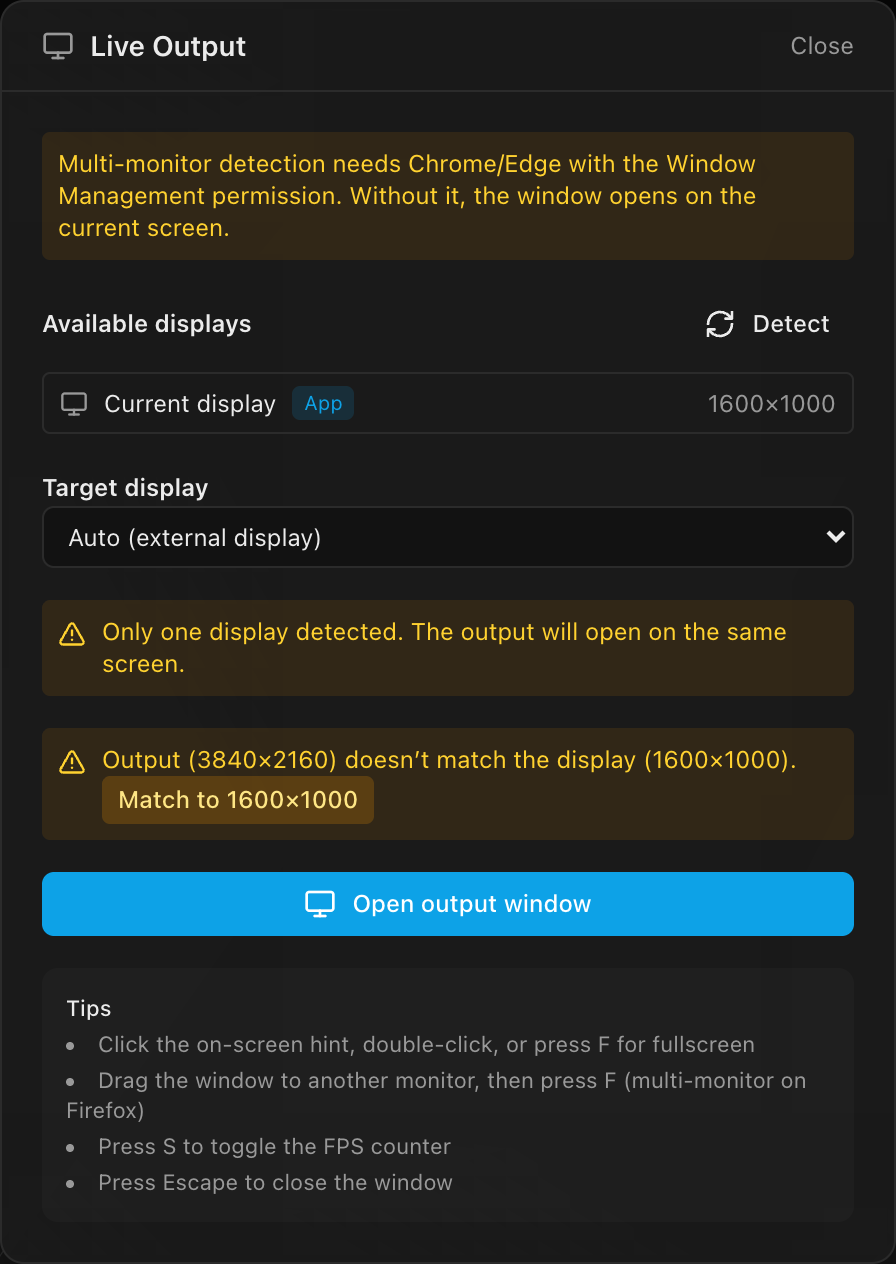
The Live Output window (sending a processor canvas to a physical display, for example to feed a real LED processor) works on both web and desktop, but the desktop version is strictly better:
- Every connected display is detected natively: real display names, exact geometry, refresh rate, and which display currently holds the app window, with no browser permission prompt.
- The output window opens frameless, directly on the display you pick.
- The output keeps painting at full frame rate even when the main window isn't focused: browsers throttle background windows, the desktop app does not. This is the main reason to prefer the desktop app for on-site processor feeds.
Open it from the in-app File → Live output… menu item, the Live button in the top bar, or the command palette.
Analytics & privacy on desktop
The web app keeps analytics off until you accept the cookie banner. The desktop app has no cookie banner: installing the app and accepting the Terms of Service counts as consent, so anonymous product analytics are on by default, and the account menu's Cookie preferences… item is web-only; it does not appear on desktop. Session replay follows the same rule as the rest of analytics on each platform (off until you Accept on web, on by default on desktop) and never starts while a sign-in link's one-time code is still in the address bar; error reports are captured. See Cookies, analytics & data stored in your browser.
In this section
- Installing on macOS, Windows & Linux: installers, formats, and where your data lives.
- Working offline: what works without internet and how your local project survives.
- Sign-in, plans & the offline license: signing in on desktop and keeping your paid plan without a connection.
- Keeping the app up to date: how updates ask before downloading or installing, and the manual check.
- Log files: where the app's log is on each platform, for sending to support.