

Appearance
Interface overview
The whole app lives in one window with four fixed zones: the top bar (project, workbench tabs, and global actions), the left sidebar (your project's structure), the workbench in the center with its inspector on the right, and a quiet status bar along the bottom. This page walks through each zone.
Keyboard shortcuts below are shown Mac-style; on Windows and Linux use
Ctrlin place of⌘.
The top bar

Left to right:
- LED.FYI wordmark: the brand mark. It swaps automatically between a dark-ink and a white version with your theme. It isn't clickable.
- File: the one project menu: new, open, cloud actions, preferences, live output, version history, and download. Covered in full in Projects, saving & autosave.
- Project name: click it to rename the project (renaming is an undoable edit; an empty name is ignored). Edited after the name means there are changes since the last saved version; hover it for the
Edited since your last saved versiontooltip. It compares actual content, so editing and then undoing back reads as clean again, and it clears when you Save version. It says nothing about whether your work is stored; that's the save readout beside it. - Workbench tabs: 3D, 2D Mapping, Sheets, Video, 2D Overview, Export. These are modes over the same project, switchable with the bare keys
1–6(not⌘1–⌘6, because browsers reserve⌘1–⌘9for their own tabs). 2D Overview sits after Video but answers to6, leaving Export on the5it has always had.
And the right-hand cluster:
| Control | What it does |
|---|---|
| Theme | One button cycles system → light → dark → system; the icon (monitor / sun / moon) shows the current preference. system follows your OS live. Persisted in the browser. See Theme & appearance. |
| Keyboard icon | Opens the shortcuts cheat-sheet, also toggled by pressing ? anywhere. The full map is documented in Keyboard shortcuts. |
| Live | Opens the Live Output dialog (⌘⇧O), which drives a detachable full-screen output window for feeding a real processor. While that window is open the button highlights with a pulsing green dot. See Live Output. |
| Undo / Redo | Step backward/forward through edits (⌘Z / ⌘⇧Z). The arrows gray out when there's nothing to undo or redo. See Undo, redo & versions. |
| Save indicator | Always-visible icon: a cloud (backed up) or drive (this browser only), with a badge for the state: green check saved, spinner saving, amber/red needs attention. Hover for the detail and the last-saved time. See Projects, saving & autosave. |
| Save version | Records a named version: a durable restore point, separate from autosave (⌘⇧S). See Undo, redo & versions. |
Help (?) | The question-mark icon (tooltip Support & feedback): links to these docs and the community Discord, Send feedback, and About led.fyi with the exact build you're running. See Help, feedback & About. |
| Account menu | Cloud builds only: sign in, account settings, plan, team, and library dialogs. See Accounts & signing in. In offline builds this menu doesn't render at all. |
Help, feedback & About
The Help menu (the ? icon near the right end of the top bar, just before the account menu) offers:
| Item | What it does |
|---|---|
| Join our Discord | Opens the LED.FYI community Discord in your browser. Shown only when the build has a Discord link configured. |
| Read the docs | Opens this documentation site in your browser. |
| Send feedback | Cloud builds only. A short form: describe the bug or idea and press Send feedback. Include a copy of my current project is ticked by default so the team can reproduce the problem; untick it to leave your design out. An equipment request opens this same form already filled in, with the project box unticked. |
| About led.fyi | A small panel with three read-outs: App version (e.g. 2.0.4), Build (where this build was made and a short code for the exact release, such as production · 51f5235), and Project version, the app version that created the open project. Works offline. |
Two installs can report the same version number, so when you report a problem, quote the Build line too; it tells support precisely which build to check. Close the About panel with its X or a click outside it. The same menu and panel are in the desktop app, where the build reads like desktop · 51f5235; the desktop app's native About LED.FYI menu item shows only the product name and version.
The template editing bar
While you're editing a drawing template, a tinted bar sits under the top bar: Editing sheet template "Wiring pair" (or New … template for one you're making), with Discard / Save template (or Cancel / Create template) on the right. The workbenches show the template on a sample wall, and your project is set aside untouched until you use one of those buttons.
The left sidebar
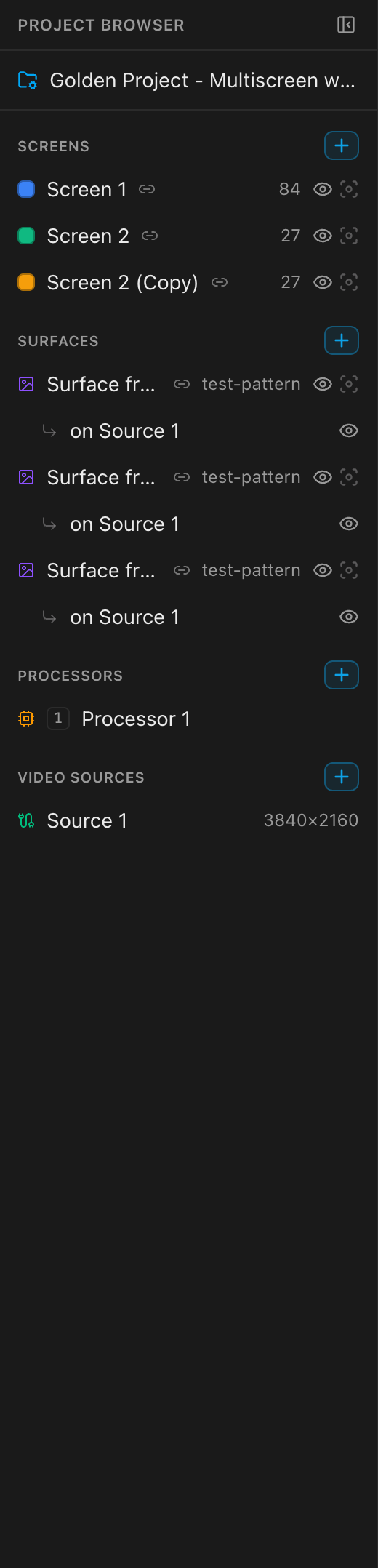
The sidebar is headed Project Browser. Press ⌘B, or the panel button in its header (Collapse the Project Browser), to fold it down to a thin strip; click the strip (Show the Project Browser) or press ⌘B again to bring it back. The state is remembered across sessions.
The project structure tree
The sidebar shows your whole project as a tree. The first row (your project's name, with a folder icon) selects project-level settings; below it sit four groups, each with an accent-tinted + add button:
| Group | Row shows | The + button |
|---|---|---|
| Screens | A color swatch, the screen name, a link chip when a surface is linked to it, its panel count, and hide + isolate buttons | A split menu: New Screen creates a blank screen (colors auto-cycle), From Surface creates a screen linked to an existing surface |
| Surfaces | A violet image icon, the surface name, a link chip when it's linked to a screen, and its source type (e.g. test-pattern) | A split menu: New Surface, or From Screen to create a surface pre-linked to a screen with a data-path test pattern so it lights up immediately |
| Processors | An amber CPU icon, a small tag badge (9, 9B…), the name, and its canvas layout when it isn't 1x1 | Adds a processor canvas |
| Video Sources | A green cable icon, the name, and its resolution (e.g. 3840×2160) | Adds a video source |
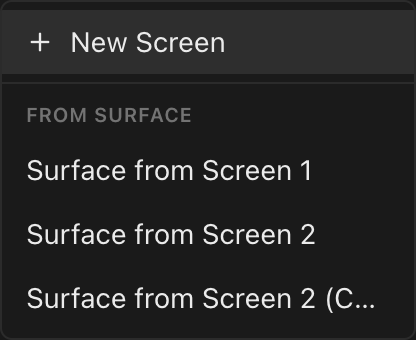
Clicking any row selects that entity everywhere at once: in 3D, in 2D Mapping, in the inspector, and in the status bar.
A few more things to know about the tree:
- Long names are shortened to fit: the sidebar is a fixed width, so a name like
LED-Wand-Stage-Rcan end in…. Hover any row to see its full name in a tooltip. - Reorder with the arrows. The selected row in any group shows small
↑/↓arrows (Move up / Move down); each click moves it one place within its group and is an undoable edit. The order matters: string and circuit numbers run in the order the Screens are listed, and each processor's tag number comes from its place in the Processors list, so reordering renumbers the labels that read off them; see Port, string & cable labels. - Screens and surfaces each carry two buttons, hide (the eyeball) and isolate (the brackets): the sound-desk pair of mute and solo. Hide takes that one row out of the 3D and 2D mapping views; isolate takes out every other row in the same group and turns amber while it is the one showing. Press isolate again, on it or on any already-isolated row, to bring everybody back. ⌥-clicking the eyeball does the same thing as the isolate button.
- Isolating works inside one group. Isolating a screen hides other screens; isolating a surface hides other surfaces. Neither reaches across into the other group.
- Linked pairs wear a chip. A screen and the surface feeding it show a small, muted chain-link icon right after their names: on both rows, always, not only while selected. Hover it for what the link means:
Linked to surface "Surface 1": its position, size and video source are kept in step with this screen automatically.See Feeding screens video. - While anything in a group is hidden, that group's header shows an amber
N hiddenbutton (SCREENScounts hidden screens,SURFACEScounts hidden placements), and clicking it restores the lot. Hiding is a view convenience only: hidden screens stay on the drawings and in the parts list. See Show & hide screens. - Placements nest under their surface as
on <video source name>rows. Each has its own eyeball to show or hide that placement (they have no isolate button of their own; the isolate on the surface row above covers the group); the surface row's eyeball hides or shows all of its placements at once (Hide all placements/Show all placements). Hidden placements and fully-hidden surfaces render dimmed, and visibility changes are undoable edits. - Hand-picked video slice groups nest under their screen as indented
Slice · N panelsrows with a violet group icon. Clicking one selects the group's member panels (the same selection a plain click on the group makes in 2D Mapping), so the inspector shows the slice controls. - A processor canvas acting as a redundancy mirror carries its primary's number plus
Bin its tag badge (e.g.9B) instead of a separate amber pill; that's what says "this is a backup" now. Hover the tag forBackup (mirror) of <name>. See Redundancy. - Adding screens, surfaces, and video sources runs your plan's capacity checks: on the free tier, hitting a cap shows an upgrade prompt instead of the action. See Plans & billing.
- The last video source and the last processor canvas can't be deleted, because every panel needs a render target.
Version history is not in the sidebar
The whole column belongs to the structure tree. Version history opens on demand from File → Version history… (or ⌘K → Version History…); see Undo, redo & versions.
The inspector
The panel on the right edge shows the editable properties of whatever is selected: a screen's panel type and grid, a processor's ports, a surface's content, and so on. Its sections change with the selection and the active workbench; each is documented with its feature (start with Screens & panels and Processors & outputs). How its fields behave (live commits, typing buffers, unit parsing) is described in Fields & numeric input.
Sections fold. Click a section's header to collapse it, and it stays that way: the app remembers your folds per kind of thing, not per item. Collapse Power on one screen and it's collapsed for every screen you select afterwards, while surfaces and processors keep their own arrangement. On a screen with mounting, curving and a long power block, folding what you're not working on is the difference between scrolling and not.
This is a personal setting stored on your machine, like the 3D display options; it isn't part of the project and doesn't travel to anyone you share with.
The status bar

The strip along the bottom is read-only and always current:
- Counts: live totals of screens, panels, surfaces, processors, and video sources in the project.
- Selection readout: a one-line description of the current selection, right-aligned:
Screen · First Screen · 95 panels,Video Source · Output 1 · 3840×2160,12 panels selected, and so on. - FPS: a frames-per-second readout, shown only while the 3D workbench is active.
Dialogs and notifications
All small dialogs (rename, Save version, delete confirmations, the replace guard) share one pattern: a centered card over a dimmed backdrop. Enter confirms, Esc or clicking the backdrop cancels, and destructive confirmations (delete, replace) use a red confirm button. Only one such dialog is ever open at a time.
Notifications stack in the bottom-right corner, color-coded by type: info (blue), success (green), warning (amber), error (red). Info and success toasts dismiss themselves after 5 seconds; warnings and errors stay until you close them with the X. A toast can carry one action link (for example Review, or Undo after you delete a template).
Escape, layered
Esc always means "back out one level": an open dialog, menu, or overlay owns it first and closes itself. With nothing open, Esc clears the current selection in every workbench, the same as clicking empty canvas. If a workbench is in a mode (wire, split, note), one Esc cancels the mode and clears the selection.
Everything else is a command
Nearly every action on this page, and hundreds more, is also reachable by name from the command palette: press ⌘K and type. See The command palette, and Keyboard shortcuts for the full key map.