

Appearance
Panel layout, selection & overrides
Every panel in a screen is its own object: it can be selected, disabled to punch a hole in the grid, given its own pixel size, physical size or wattage, moved by hand, and locked so recomputes leave it alone. This page covers selecting panels and everything on the panel inspector.
Selecting panels
- Click a panel in the 2D mapping view or the 3D view (any face of the cabinet, front or back) to select it.
- Double-click a panel (two clicks within about a third of a second) to select its whole screen instead. Works in both 2D and 3D.
- Shift-click toggles individual panels in and out of the selection. Works in both 2D and 3D.
- Panels in a video slice, a piece of the screen's picture you cut in the Video workbench, select as a slice on a plain click, and Shift-click adds or removes the whole slice. Hold
⌥(Alt) to reach an individual member. (Slices are a 2D idea; Shift-click in the 3D view always toggles the single panel you clicked.)
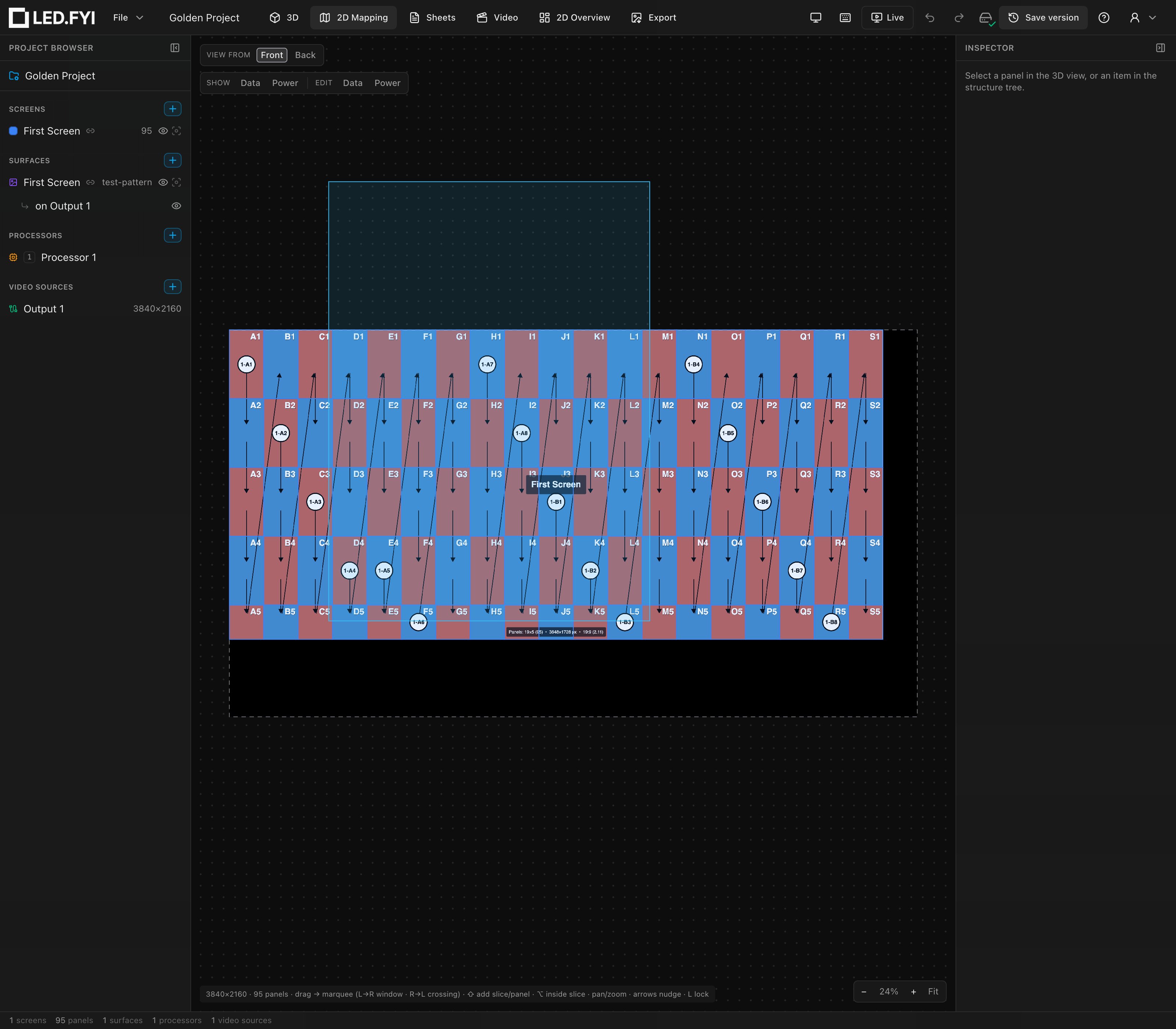
In the 2D mapping view, dragging on empty canvas draws a CAD-style marquee (its direction is the one you drag on screen, including in Back view):
| Drag direction | Mode | Selects |
|---|---|---|
| Left → right | Window | Only panels fully enclosed by the box |
| Right → left | Crossing | Every panel the box touches |
Hold Shift while marqueeing to add to the current selection. Space+drag or the middle mouse button pans instead of marqueeing, and the status bar under the canvas recaps all of this (drag → marquee (L→R window · R→L crossing) · ⇧ add slice/panel · ⌥ inside slice · pan/zoom · arrows nudge · L lock).
Selected panels can be dragged to new mapping positions, or nudged with the arrow keys.
In the 3D view, a selection of one or more panels gets the transform gizmo: drag it to move or rotate those panels in physical space, freely, off their screen's regular grid. The two are independent: the mapping position is where a panel samples video, the 3D position is where it physically sits. Anything dragged below ground level (world height 0) disappears under the solid floor, the cue that it is underground; make the floor translucent or turn it off if you need to see it there. The 3D view opens from a standing eye height, so that floor is in perspective while you drag, not a line seen edge-on. The floor is a 25 m square by default. A layout that spreads wider than that reaches past its rim, and the Floor size slider enlarges it.
The panel inspector
With one panel selected, the Inspector shows the full panel form:
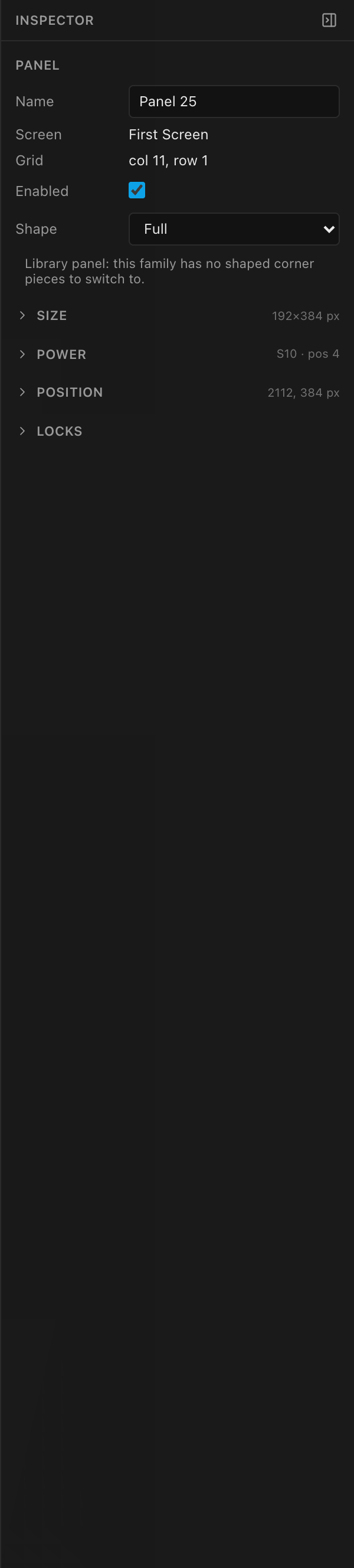
Panel section
| Field | What it is |
|---|---|
| Name | The panel's own label (editable). |
| Screen | Read-only: the owning screen. |
| Grid | Read-only: the panel's cell, col N, row N. |
| Enabled | Whether a physical panel exists in this cell; see Disabling panels below. |
| Shape | The panel's shape: a dropdown or read-only depending on the panel's provenance. Covered in Panel shapes. |
Size: per-panel overrides
Each override is a checkbox plus a value: the checkbox gates whether the panel uses its own value instead of the screen default, and typing a value switches the override on automatically.
| Override | Fields | Default |
|---|---|---|
| Override px | Pixels W × H (px) | off (inherits the screen default) |
| Override mm | Physical W × H (mm) | off (inherits the screen default) |
This is the per-panel "custom resolution" path: one odd tile in an otherwise uniform wall. (Shaped sibling products set these overrides automatically when you swap a panel's shape.)
Power
- Override W + Wattage: this one panel's power draw (the field opens at
100W). Off means inherit. The full wattage cascade is: panel override → screen override (Screen inspector → Panel → Override panel wattage) → panel type →100W fallback; see Per-screen power settings. - Data str / Power str: read-only, live: which data string and power string the panel currently belongs to. Data str names the string by its project-wide S-number, as
S12 · pos 3, so it matches the canvas chip and String assignment; Power str still reads#index · pos N. These update as wiring or limits change; see Data path & string splitting.
Position
| Field | Space |
|---|---|
2D X/Y (px) | Where the panel samples video, in processor composite pixels (the mapping position). |
3D X/Y/Z (mm) | The panel's world position. |
Rotation X/Y/Z (°) | The panel's own rotation (0 unless hand-set or derived from a curve). Angles apply in X → Y → Z order, like a screen's; hover the ⓘ for the reminder. |
Locks
Three independent locks freeze a panel against screen-level recomputes. Each keeps the stored value for its axis, so a hand-placed panel survives grid resizes, path changes, and other regenerations:
| Lock | Freezes |
|---|---|
| Lock map | The mapping (video-sampling) position |
| Lock 2D | The 2D layout position |
| Lock 3D | The 3D world position and angle |
A map-locked panel is select-only in the 2D view (drags won't move it), and locked panels draw with a dashed amber outline there. Locked panels also keep their size and wattage overrides across grid regenerations; unlocked panels lose them when the grid is resized.
Bulk editing a multi-selection
Selecting several panels opens a bulk form titled N panels: the shared Enabled checkbox, all three Locks, the pixel-size override (Override px + Px W / Px H), and the wattage override. Each edit applies to every selected panel in one undoable step. When the selection spans values, a field shows as mixed until you set it. (When the selection is exactly one video slice, the form also shows its Video slice section; see Feeding screens video.)
Disabling panels (irregular shapes)
Disabling a panel punches a hole in the grid: the cell keeps its place, but no physical panel exists there. Disabled panels are excluded from data strings, power, the BOM, the weight estimate and the mounting hardware: nothing to wire, nothing to buy, nothing to hang. Use them to model L-shapes, cutouts, and pillar-wrap gaps.
Where you still see them is where you're working: they render grey in the 3D view and dark grey in the 2D mapping view, so the hole stays visible and clickable while you design. Your paperwork shows the wall as built instead: a disabled cell is simply absent from the elevations on both the PDF and the DXF, so a cutout reads as a cutout, and a wall whose outer column is disabled is dimensioned at its real width rather than the full grid. Nothing is stamped over the hole to mark it.
Three ways to toggle:
- Inspector: the Enabled checkbox (single panel or multi-selection).
- Right-click in the 2D mapping view:
Disable panel, orDisable N panelsfor a selection. ⌘K→ Toggle Panel Enabled: group-smart. If any selected panel is disabled it enables all of them, otherwise it disables all.
Disabled ≠ blank
A disabled panel is a hole: no panel at all, excluded from the BOM and weight. A blank panel is real structure with no electronics, counted on the BOM, weight, and mounting. See Half panels & blank panels.
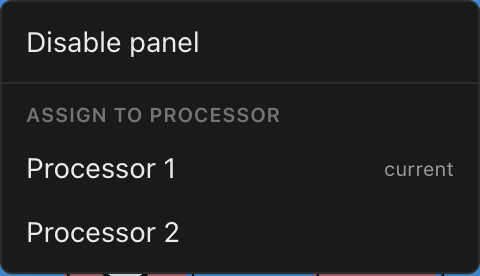
The right-click menu
Right-clicking a panel in the 2D mapping view opens its context menu (it acts on the whole selection when the pressed panel is part of one):
| Item | When it appears | What it does |
|---|---|---|
| Disable/Enable panel(s) | Always | Toggles the pressed panel or the whole selection. |
| Assign to processor (list) | Projects with 2+ processors | Force-assigns the panel(s) to a processor canvas ("manual pin"). See Multi-processor screens. |
| Re-assign circuit label / Reset circuit number (auto) | On a power-chain head | Picks this chain's circuit label from the labels the project's scheme can produce (already-pinned ones are shown but unavailable). See Power circuits in the mapping view. |
| Power circuit combine | Manual combine mode, on a chain head | Combine or uncombine circuits, with a live within-budget indicator. See Power. |