

Appearance
Paper sizes, standards, units & scale
Every drawing set prints to one paper size, one drafting standard and one pair of print units, chosen once, applied to every sheet, so the packet reads as one document. Scaled drawings never print at arbitrary ratios: they snap to standard drawing scales, and screens too large to read on one page break across sheets with proper match lines.
Select any sheet (click its row in the Drawings rail, or click empty paper) to see the settings:
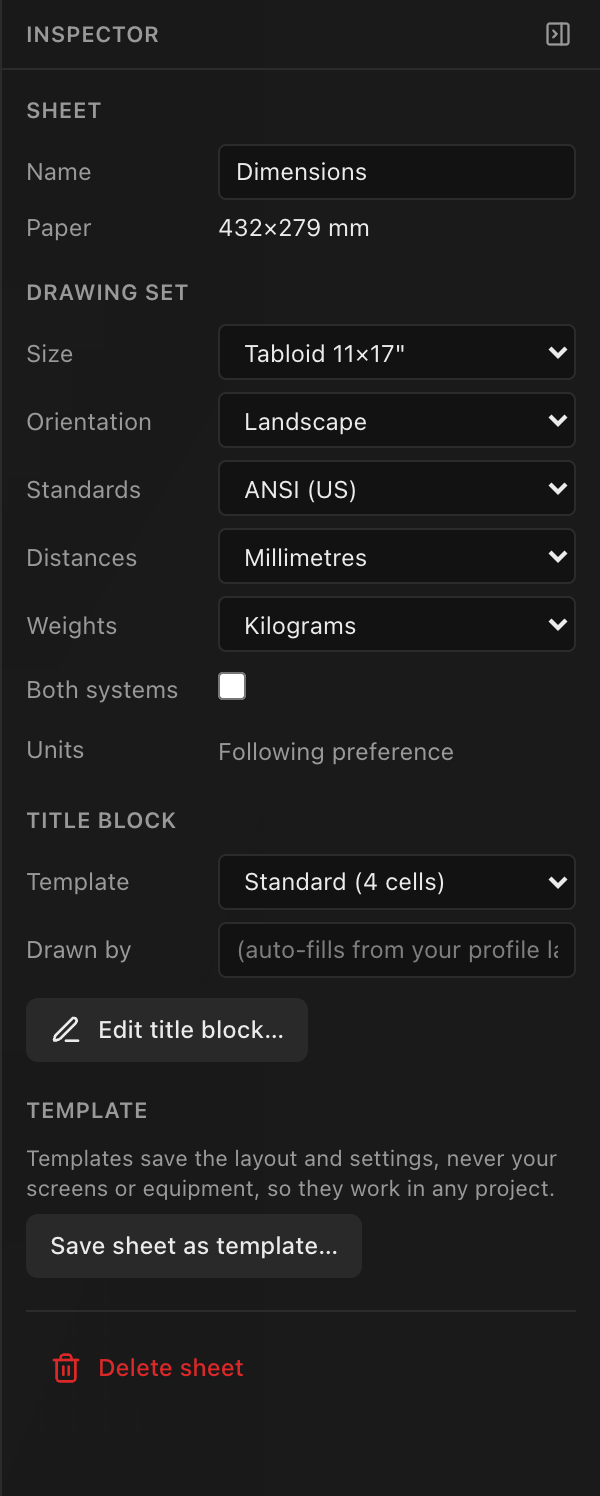
One control, every sheet
Size, Orientation, Standards, Distances and Weights are set-level by design: changing any of them re-applies to every sheet in the drawing set (and, for the units, pins the whole set at once). After a paper or orientation change, every object is clamped back onto the new page (oversized boxes shrink first), so check your layouts after switching.
Standards: ANSI vs ISO
The Standards select picks the drafting style profile. It's styling, not a compliance engine. It changes how drawings look, not what they claim:
| What changes | ANSI (US) | ISO (metric) |
|---|---|---|
| Paper family | Tabloid 11×17", Letter 8.5×11" | A3, A4 |
| Dimension terminators | Filled arrowheads | Oblique ticks |
| Decimal separator | . | , |
| Standard scale family | Architectural inch-to-foot (¼″ = 1′-0″ …) | Metric 1:N (1:50, 1:100 …) |
Switching profiles keeps each sheet's paper if it exists in the new family; otherwise the sheet snaps to the family's default size (Tabloid or A3).
Paper size & orientation
| Setting | Options | Default |
|---|---|---|
| Size (ANSI) | Tabloid 11×17" (431.8 × 279.4 mm) · Letter 8.5×11" (279.4 × 215.9 mm) | Tabloid |
| Size (ISO) | A3 297×420mm · A4 210×297mm | A3 |
| Orientation | Landscape · Portrait | Landscape |
Paper is set per drawing set, so a sheet added from a sheet template takes the set's size and orientation, and its blocks and notes are resized to fit. A whole drawing set template keeps the paper it was saved with.
A Custom entry appears in the Size select only when the stored size matches no paper in the active family (for example right after a profile switch on an imported document). It identifies the odd size out; it isn't a free-size editor.
Print units
Three controls govern the units printed on paper, separate from the Inspector, which is millimetres in both systems. Every drawing set follows your app-wide Units preference live until you touch one of them; touching one pins the set, and it prints that from then on whatever anyone's preference says.
| Setting | Options | Shows | Affects |
|---|---|---|---|
| Distances | Millimetres · Inches | what the set prints in right now | Dimension chain values on elevations · cable-run lengths · every length on a BOM row, including mounting-part descriptions · the panel datasheet's mounting-pattern row |
| Weights | Kilograms · Pounds | what the set prints in right now | Weight Estimate tables |
| Both systems | on · off | Off | Prints metric and imperial together |
A fourth row, Units, says which of the two states the set is in and is the way between them:
| Units reads | What it means |
|---|---|
| Following preference | Nobody has set units for this set. It prints in whatever Preferences → Units says, and re-letters the moment that changes: no reload, no edit to the project. |
| Set here | Somebody picked units for this set. It prints those, on anybody's machine, whatever their preference. Use preference appears beside it to hand the set back to the preference. |
The three selects always show what the set will actually print in (the preference's answer while it is following, its own while it is pinned), so what you read is never a promise the paper won't keep.
Why both states exist: a job in progress should re-unit for whoever opens it, but a packet you have already sent must not. Pinning is what makes an issued set immune: flipping your preference afterwards leaves it exactly as issued. Metric is the preference's default because LED panels are metric-native (500 × 500 mm cabinets, millimetre pitch); paper stays ANSI either way.
Getting back to inheriting is a button, not a guess
Use preference is the only way back. Re-picking Millimetres because that happens to be what your preference says would pin the set to millimetres, not release it. The Units row tells you which one you did.
Imperial has three shapes, chosen by what the number is for. They all follow the one Distances control; only the presentation differs, because a US drawing set carries three different kinds of number and the trade reads each one differently. (Decimal inches, 374.02", are a machining convention and appear nowhere in the set.)
| The number is… | Imperial prints | Why |
|---|---|---|
| a dimension you lay out: an elevation's dimension chain | architectural feet + inches: 31' 2-1/4" | It's set out on site against a scaled drawing, so it reads the way the drawing is scaled (3/16″ = 1′-0″). Metric millimetres, unitless per ISO, on the other side of the switch. |
| a hardware length: a mounting part's description, the datasheet's mounting-pattern row | 19-11/16" | Somebody cuts or drills to it, so it prints the mark on a rule: fractional inches to the nearest 1/16". |
| a quantity you order: BOM cable lengths, the trunk-length assumption, the Weight Estimate's run column | decimal feet, exact: 98.43 ft | It's ordered off a reel, and it stays the measured length. Inches would be unreadable (11003.9") and a fraction would claim a precision the measurement doesn't have. |
Two things that look like inconsistencies but aren't. Hardware lengths stay in inches however long the part is (2w hanging bar (39-3/8"), never 3' 3-3/8"), so a parts column never changes shape halfway down, while a dimension you lay out does roll up into feet. And cable lengths stay exact: they are the distance the app measured, not a rounded-up order quantity, so the BOM is a measurement rather than a shopping list. (To group runs onto real stock lengths, that's cable stock presets, which is opt-in and separate.)
The set's units reach every printed number, without exception: inherited or pinned, it is the same one answer. There is no corner of the paperwork that quietly stays metric: BOM cable lengths, the trunk-length assumption, the mounting engine's part descriptions, the datasheet mounting-pattern row and the cable-weight footnote (kg/m → lb/ft) all follow the two controls above, each in the shape from the table. Electrical values and pixel counts are unit-agnostic and print unchanged; a screw thread designation like M6 is a product name, not a length, so it never converts either.
Both systems (dual units)
Tick Both systems when one packet has to serve a metric shop and an imperial crew. Every dimension callout and every weight then prints both: the set's own choice above leads, and the other system follows in parentheses:
| Set is… | A 3500 mm dimension prints | A 450 kg weight prints |
|---|---|---|
| Metric | 3500 (11' 5-13/16") | 450 kg (992.1 lb) |
| Imperial | 11' 5-13/16" (3500) | 992.1 lb (450 kg) |
Three things to know:
- It's off by default and set-wide. Nothing on your existing paperwork changes until you turn it on, and turning it on applies to every sheet in that drawing set, so a strictly-metric or strictly-imperial packet stays exactly that.
- The imperial half is tape-measure style: feet plus inches rounded to the nearest 1/16″, the graduation a crew actually works to, and the same graduation the parts-list inches above use. It is the same string single-system
Inchesprints; the dual callout just appends the metric companion, so a set can never show two different imperial shapes for the same dimension. - Callouts get materially longer. On a busy elevation the dual strings can crowd a dimension chain; that's exactly why the toggle is per drawing set. Turn it off for the crowded set, or give the drawing more room.
Electrical values (volts, amps, watts) and pixel counts are unit-agnostic, so they print unchanged either way.
Drawing scales
Scaled drawings (the elevations, isometric view and curving plan) are physical geometry, so they print at a real drawing scale. The app fits the drawing into its box, then snaps down to the nearest standard scale from the active profile's family:
- ISO sheets: the metric series
1:11:21:51:101:201:251:501:1001:2001:500 - ANSI sheets: the architectural series
1″ = 1′-0″(1:12),¾″(1:16),½″(1:24),⅜″(1:32),¼″(1:48),3/16″(1:64),⅛″(1:96),1/16″(1:192),1/32″(1:384), plus the small whole ratios 1:1, 1:2, 1:5 and 1:10
The sheet's first scaled drawing prints its scale in the title block (SCALE 1:N, or the architectural form on ANSI sheets), and any block can carry its own drawing label with the scale printed beneath its title. Resizing a scaled drawing steps through these scales live: the size you see mid-drag is the size that commits.
Setting an exact scale
Select a scaled drawing and use the Scale preset buttons in the Inspector. They resize the block's box so the drawing prints at exactly that scale:
| Sheet standard | Preset buttons |
|---|---|
| ISO | 1:10 1:20 1:25 1:50 1:100 |
| ANSI | 1″ ½″ ¼″ ⅛″ 1/16″ 1/32″ (each = 1′-0″) |
Two honesty rules: a preset too large for the paper clamps to the page, and the printed scale always reads the snapped result, never the request. Content too big for even the family's largest denominator falls back to a rounded, non-standard (but honest) ratio.
The legibility floor
Wiring grids have a minimum readable cell size (about 13 mm on the long side with ANSI text sizing, derived from the smallest legible panel label; elevation panels can go to about half that). It isn't user-adjustable. When a grid would print below it, the sheet itself warns you: an amber banner reading "Grid below readable size: scope to a screen and paginate" appears on the drawing.
The profile also sets the default height of the text you add yourself: notes and leaders print at the standard's note height (3 mm on both profiles) unless you give a note its own Text size.
The fix is in the banner: scope the block to one screen, then paginate.
Paginating an oversized screen
When a Data Wiring, Power Wiring or Wall Elevation block is scoped to one screen (on a single-screen project the lone screen counts automatically) and that screen still can't print readably on one page, the Inspector offers Paginate (N sheets). One click breaks the drawing across N sheets:
- Page 1 reuses the current sheet, renamed "Block: Screen · 1/N"; pages 2…N get new sheets inserted right after it, inheriting the set's paper, standards, units, branding and template.
- Every cut edge gets a standard phantom-line match line labeled MATCH LINE: SEE SHEET n, with about
13.4 mmreserved per cut side so the label never crowds the drawing. - The n is a live sheet reference: reorder sheets in the rail and every match-line label updates to the neighbor's new number. (Delete a neighboring page and its label degrades gracefully to a plain MATCH LINE.)
- Where a string or circuit is cut by the match line, it ends in a short stub and a hollow hexagon tag naming the panel it continues to on the other sheet, e.g.
A1.5. The tag is deliberately not an arrowhead: on wiring drawings a filled arrowhead always means flow this way, and a crossing coming in from the previous sheet points back the way it came. A hexagon carries no direction, so it can point at the off-page panel without ever reading as the signal running backwards. You don't need the sheet number on the tag: the match line beside it already says which sheet to turn to. - Don't confuse it with the pointed and notched link flags, which mark a cable that continues onto a different screen rather than a different sheet; see running one cable across two screens. A hexagon says "same cable, next page"; a link flag says "same cable, next screen".
- Pages read row-major (left to right, top to bottom), and a sheet that is already a paginated page doesn't offer Paginate again.
- A wiring block set to Viewed from → Back paginates left to right as seen from behind, so page 1 is the part of the wall that's on the crew's left. Each Back page draws mirrored with its match lines swapped to match, so SEE SHEET n always names the page that really sits on that side. Changing Viewed from on any page of a paginated set changes every page in it.
Pagination is one undo step, so if the split isn't what you wanted, ⌘Z restores the single block and removes the extra sheets.