

Appearance
Manual wiring
The automatic path patterns cover clean rectangular grids. Real installs don't always cooperate: irregular shapes, cable trays that force a route, string breaks that must land on a specific panel, or as-built documentation of existing cabling. Manual wiring lets you override the pattern panel by panel, directly on the 2D map, and mix hand-drawn connections freely with the automatic pattern.
Data wiring and power wiring are completely independent: each panel carries separate manual links for each, each screen carries a separate path config for each, and each mode is edited separately. See Power: strings, circuits & buffers.
Entering wire-edit mode
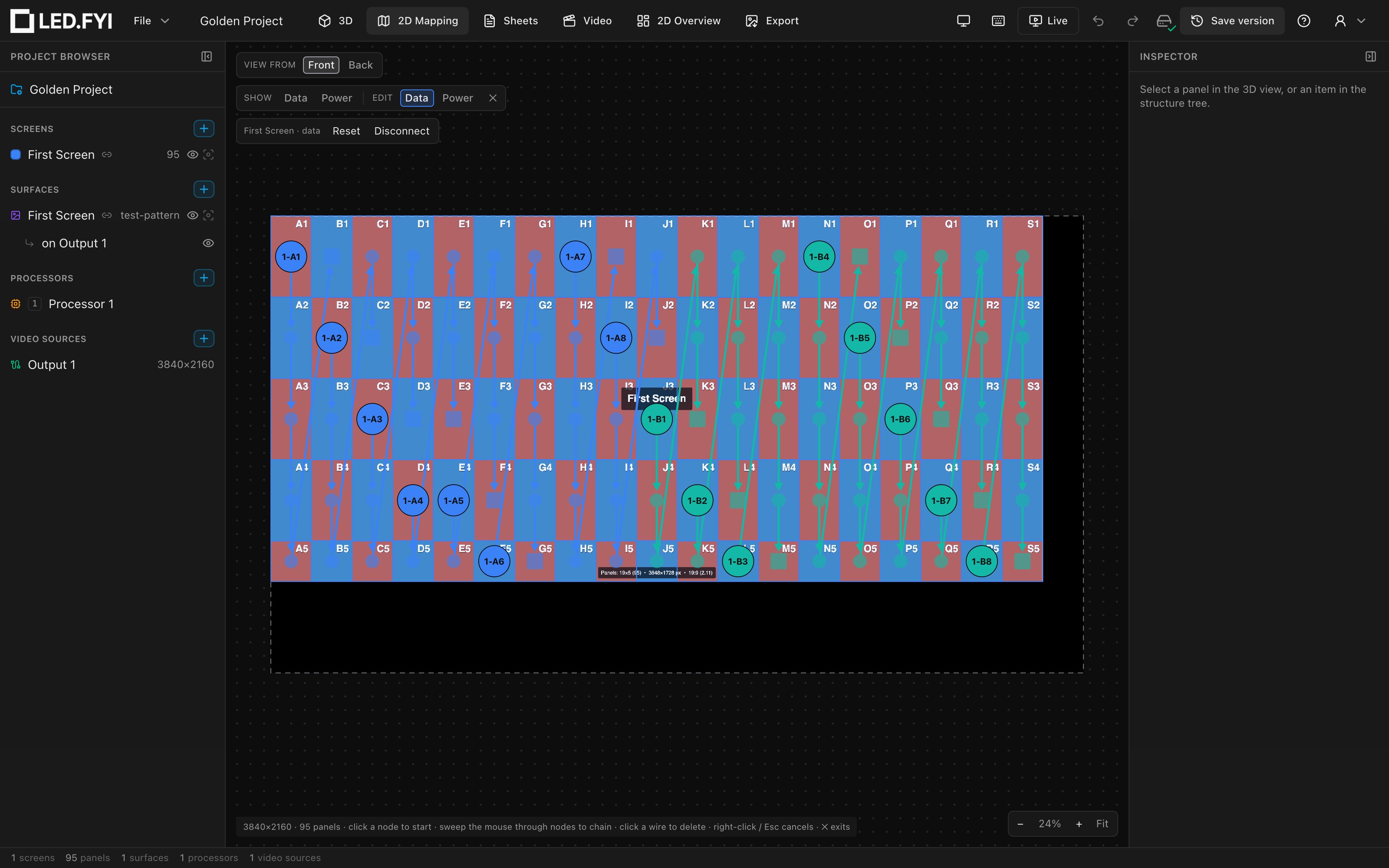
In the 2D Mapping workbench, use the wiring control bar (top-left): click Edit: Data (blue) or Edit: Power (orange). While a mode is active:
- The panels dim and become non-interactive; the wiring nodes and wires are the only click targets.
- A second toolbar row appears with the resolved screen's name and its Reset and Disconnect buttons. (The automatic path itself, meaning pattern, start corner and direction, is set from the Screen inspector's Wiring paths picker, not here.)
- The hint chip (bottom-left) summarizes the gestures: click a node to start · sweep the mouse through nodes to chain · click a wire to delete · right-click / Esc cancels · ✕ exits.
Exit with the ✕ button in the control bar, or press Esc when nothing is armed.
Wiring it the way the crew sees it
Crews wire from behind the wall. Switch the workbench to Back view to see the canvas mirrored left-to-right, as it looks from behind, and wire it there. The wire editor works exactly the same way.
Node shapes
Every panel shows a node whose shape tells you its role in the chain:
| Shape | Meaning |
|---|---|
| Triangle | String start: the first panel of a multi-panel chain |
| Square | String end: the last panel of a chain (also the armed source while you're wiring) |
| Circle | Mid-chain panel, or an isolated single-panel string |
The chain's start node also carries the string's solid label chip; a backed-up string's end node carries the dashed backup chip (see the design language).
Connecting panels
Manual wiring is connect-by-hover: one click, then a sweep:
- Click a node to arm it. It enlarges and gets a white outline. A dashed rubber-band line previews from the armed node to your cursor, snapping onto a valid hovered target.
- Sweep the mouse through valid nodes. Each node you enter is connected to the chain and becomes the new source, so you can wire an entire string in one fluid motion. Every hover-connect is one undoable step.
- Stop when done. Click the armed node again, right-click, or press
Escto de-arm (you stay in wire-edit mode). Clicking empty canvas also ends the current chain.
Valid targets light up (white outline); invalid ones grey out with a not-allowed cursor. A target is valid only when it:
- is enabled,
- starts a string: it has no incoming connection,
- is not already part of the chain you're building (no loops), and
- if it's on another screen, passes the receiver-card check below.
Re-wiring a mid-chain panel
A panel that already has an incoming wire never lights up as a target. To route to it, first cut its incoming wire (click the wire), or use Disconnect to free every panel on the screen at once.
Running one cable across two screens
A cable doesn't care where one screen ends and the next begins. You can run the cable out of the last panel of one screen straight into the first panel of another, and the app keeps treating it as one cable (one string, one label, one row on the cable schedule) until it hits the real pixel limit (data) or watt limit (power).
Draw it exactly like any other connection: arm the last panel of the first screen, then sweep onto a free start panel on the other screen. There is nothing else to switch on.
This never happens automatically
The automatic pattern always stops at the edge of its own screen. A run only crosses screens because you drew it, and it survives re-wiring and pattern changes the same way any other hand-drawn connection does.
Which limit applies. A run that spans two screens takes the stricter of the two screens' limits. If one screen allows 650,000 pixels per cable and the other 512,000, the whole run splits at 512,000. The same goes for a panel-count cap, and for watts on the power side.
Both screens must use the same receiver card. One cable feeds one kind of card, so a screen running (say) a NovaStar A10s Pro can't be bridged to one running an Armor card. The target panel simply won't light up, and clicking it tells you which card is on each side. Fix it by giving both screens the same Receiver card in the Screen inspector: the same card that sets each string's port capacity.
Both ends must be on the same processor. A data cable comes out of exactly one processor output, so panels can only be wired together when the same processor drives them. That is also why the 2D map shows one processor's canvas at a time: the panels you can reach are exactly the panels you're allowed to chain. To run a cable into a screen that's on a different processor, move that screen over first. Right-click its panels and use Assign to processor (see Multi-processor screens), then draw the cable.
If the run's later panels turn out to be driven by another processor (a screen split across two, say), drawing the bridge pulls them onto the origin's processor and tells you how many moved. Pulled panels are laid out beside the part of their screen already on that processor, never on top of it. That re-lays the other canvas and its port assignments, so check it afterwards. Power has no such rule: a power run starts at a breaker, which knows nothing about processors, so a power cable can cross freely.
Naming. A bridged run belongs to the screen it starts on; that's whose numbering it takes. Cable schedules and labels name both screens it passes through, e.g. Main Wall → Side Wall.
How a bridged run reads on the drawings and on the wall. Everywhere a run is shown per screen, only the part on that screen can be drawn, so the app marks where the rest of it is rather than pretending the cable ends. The two ends of a bridge get a matched pair of link flags, in the run's own colour, carrying its cable name with the other screen's name beneath:
| Mark | Where | Means |
|---|---|---|
Flag with a point (▶) | last panel of a run on this screen | The cable leaves here, heading for the named screen |
Flag with a notch (▷) | first panel of a run on this screen | The cable arrives here, from the named screen |
The point and the notch are each other's negative: set them side by side and they interlock, which is the visual cue that the two halves are one cable. They replace the X (which keeps its single meaning: this really is the end of the cable) and the solid start circle (a port feeds the cable here), and both face downstream, so sweeping along a run never reads as the signal doubling back.
Panel numbering carries straight on across the seam (…39, 40, then 41 on the next screen) and the cable schedules name both screens. The on-wall data-path test pattern uses the same pair, so the wall and the paperwork agree.
A run also keeps one colour everywhere it appears, across every screen it touches, so you can pick a cable out of a multi-screen drawing set by colour alone.
If you later delete or re-grid one of the screens, the cable between them is dropped automatically and the app says how many went, exactly like any hand-drawn wire to a panel that no longer exists.
Cutting a wire
Click any wire segment to delete that connection. It turns red as you hover, and a generous invisible hit area makes thin wires easy to hit. Cutting marks the source panel's outgoing link as an explicit cut: the automatic pattern will not re-bridge that gap. It deliberately ends a chain there until you reconnect it or reset the screen.
Manual links override the pattern
Every hand-drawn connection and every cut is honoured outright, panel by panel; that is what makes manual wiring possible. The flip side: on a screen that carries any, picking a different path pattern visibly changes nothing on those panels. The pattern only decides how panels without an override connect; the overrides stay exactly where you drew them until you reset them. Changing the pattern on a screen that has been fully Disconnected (see below) only renumbers the one-panel strings; they never rejoin.
So the Screen inspector tells you when this is happening. In Wiring paths, each row (Data / Power) shows a notice under its method whenever the screen carries hand-drawn wiring for that mode ("Hand-drawn wiring overrides this pattern: 0 links, 162 cuts"), with a Reset to automatic wiring button. One click removes every manual link and cut on that screen for that mode (one undo step), and the wiring redraws from the pattern immediately. The notice disappears when there is nothing left to reset.
Reset vs Disconnect
The wire-mode toolbar offers two bulk actions for the active mode. They look similar but produce opposite starting points:
| Action | What it does |
|---|---|
| Reset | Removes every manual override on the screen (connections and cuts) and reverts fully to the automatic pattern. |
| Disconnect | Explicitly cuts every enabled panel into its own isolated one-panel string. Nothing is connected until you wire it by hand. |
Which screen they act on. The toolbar acts on the screen(s) whose panels are on the processor canvas you are looking at, never on some other screen in the project. With one screen on the canvas, the buttons name it in their tooltip and act on it directly. When the canvas hosts panels from several screens, Reset… and Disconnect… open a small picker listing every screen on that canvas with its current count of hand-drawn links and cuts; tick some, all, or none, then Apply. The selected screen is pre-ticked when it is one of them, otherwise all are. A multi-screen action is a single undo step.
Both are also in the command palette: Reset Data/Power Wiring to Pattern and Disconnect All Data/Power Wiring. From the palette they act on the selected screen, the selected panels' screens, or (with a processor selected) every screen on that processor. With nothing selected they act only in a project with a single screen. (V1 called Disconnect "Clear".)
Prefer the inspector's Reset
If all you want is to go back to the automatic pattern, use Reset to automatic wiring in the Screen inspector's Wiring paths section. It is scoped to exactly the screen you are looking at, and it sits next to the pattern picker it restores.
Reset can release port assignments, and it asks first
A processor's string → port assignments are remembered by the first panel of each cable run. Reset re-walks the screen, so a run that used to start on one panel can start on another, and any port whose run no longer starts where it did has nothing left to feed. Those assignments (and the backup ports attached to them) are released.
This only bites after a particular sequence: you hand-edit the wiring, then click Fill or Balance to re-tidy the ports against that hand-drawn layout, then Reset. The tidy-up re-attaches every port to the hand-drawn runs; the Reset puts the runs back, and some ports are left pointing at nothing.
Reset works this out before it changes anything. When a data reset would release at least one port assignment, a Reset to automatic wiring? dialog names the ports first, grouped by processor:
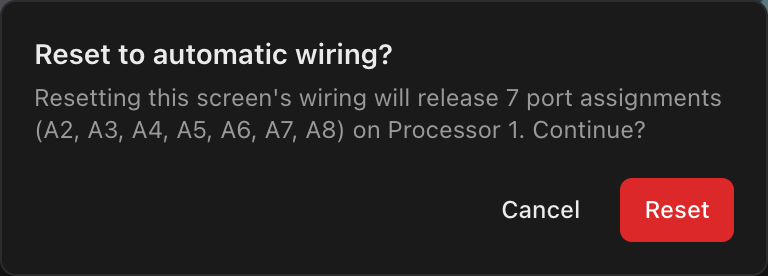
Resetting this screen's wiring will release 2 port assignments (A2, B4) and their backups on Processor 1. Continue?
- The ports are named without the processor tag (
A2,B4), because the line already names the processor. - Several processors get a line each.
- When only some of the released ports carry a backup, the line counts those separately: "1 backup goes with them."
| Button | What it does |
|---|---|
| Cancel | Leaves the project untouched |
| Reset | Resets the wiring and releases the named assignments in one undo step. A Wiring reset notification then names the released ports again, for example "Released 2 port assignments (A2, B4) on Processor 1." |
The same check runs wherever you reset: the Screen inspector's Reset to automatic wiring, the wire toolbar's Reset, and Reset Data Wiring to Pattern in the command palette. A reset that releases nothing (the normal case) still happens in one click with no dialog. A power reset never asks, because power runs have no port assignments.
If a reset does release ports, clicking Fill or Balance again re-assigns them against the restored wiring. With Auto backup on, the processor's backups are re-planned as part of the reset.
Limits still apply, but never block
Unlike V1, V2 never rejects an over-limit connection. Chain as many panels as you like: the engine automatically splits the chain into multiple strings at the pixel limit (data) or watt limit (power). The split point moves live as you keep wiring. See Data path & string splitting.
Enabling and disabling panels
Right-click a panel (outside wire-edit mode) for Enable panel / Disable panel, or the multi-selection variants (Disable N panels). The same toggle is the Enabled checkbox in the panel inspector. Disabled panels draw dimmed on the map, drop out of both data and power wiring entirely, and the automatic path routes around them. Blank spacer panels are excluded from wiring and don't appear on the 2D map at all. See Half panels & blank panels.
Undo
Every connect and every cut is one ordinary undo step: ⌘Z walks back through your sweep one connection at a time. There is no separate wiring undo history (V1 had one; V2 does not). See Undo, redo & versions.