

Appearance
One processor, four 4K outputs
This tutorial builds an 8K wall on a single processor: a 12 × 12 wall of fine-pitch 16:9 tiles (a native 7680×4320 canvas), driven by one Megapixel Helios whose four 4K inputs are stitched into one 2x2 canvas. Along the way you'll author a custom panel, rack the Helios with an input card and an output card, let the frame rate set the per-string capacity, fan 29 data strings out over five switches on five 10G trunks, and feed the whole wall from one linked surface.
Everything here works offline, with no sign-in, custom equipment authoring included (see Custom equipment).
1. Start a fresh project
- Click File → New…. If a project is already open, a guard asks before replacing it. The current project is autosaved in your browser, but opening another one overwrites that autosave, so download a copy first if you want to keep it. Click Replace.
- Name the project (this walkthrough uses
Golden Build: Multi Output) and click Create.
You should see an empty structure tree: no screens or surfaces yet, one Processor 1 and one Video Source 1 at 1920×1080. The status bar reads 0 screens · 0 panels.
Why not the wizard?
File → New with wizard… is the faster road for standard builds, but it only offers library panels and a single-output canvas. This build needs a custom panel and a 2×2 layout, so it uses the plain New… flow and does everything in the Inspector.
- Select Video Source 1 in the tree and, in the Video source section, click the 4K preset. The tree row now reads
3840×2160.
2. Author the panel that isn't in the library
The tile is a 0.9 mm-class fine-pitch panel: 640×360 px on a 600 × 337.5 × 29.2 mm frame. It isn't in the equipment library, so you'll create it as a custom panel, directly from the panel picker.
In the tree, click + next to Screens and choose New Screen, then select the new screen.
In the Screen section, rename it from
ScreentoScreen 1and set Grid to12×12. Panels now reads144.In the Panel section, click the Type picker and choose Create custom… at the bottom of the list. Fill in the tile's spec:
Field Value Brand / Model Custom/FP 0.9 640×360Pixels W × H 640×360Width × Height 600×337.5mmDepth 29.2mmMax watts 190WWeight 6.5kgEvery other field can stay at its default.
190 Wand6.5 kgare realistic stand-ins for this class of tile; the power and weight totals later in the build follow whatever you enter here.This is the panel face of one shared authoring form: for platform admins, the same Create custom… entry in a processor, switch or receiver card picker opens that kind's own fields (everyone else gets a request card there). Every kind's full field table is on Creating custom equipment.
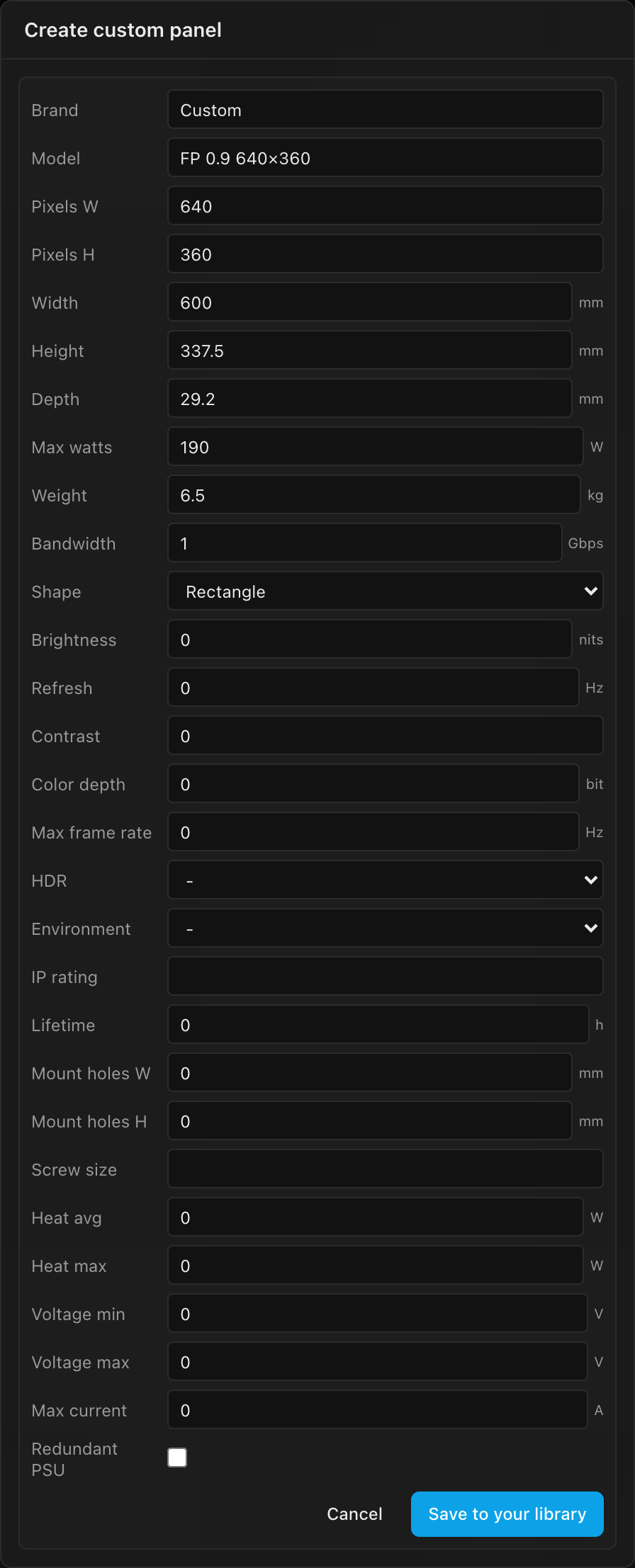
Click Add to document. If you're signed in, the button reads Save to your library instead: it does the same here, and also keeps the panel in Your library for later projects.
The Type field now reads Custom panel, Pitch shows 0.94 mm (derived), and the screen's Resolution reads 7680×4320 px: a true 8K wall. The 3D view shows all 144 tiles.
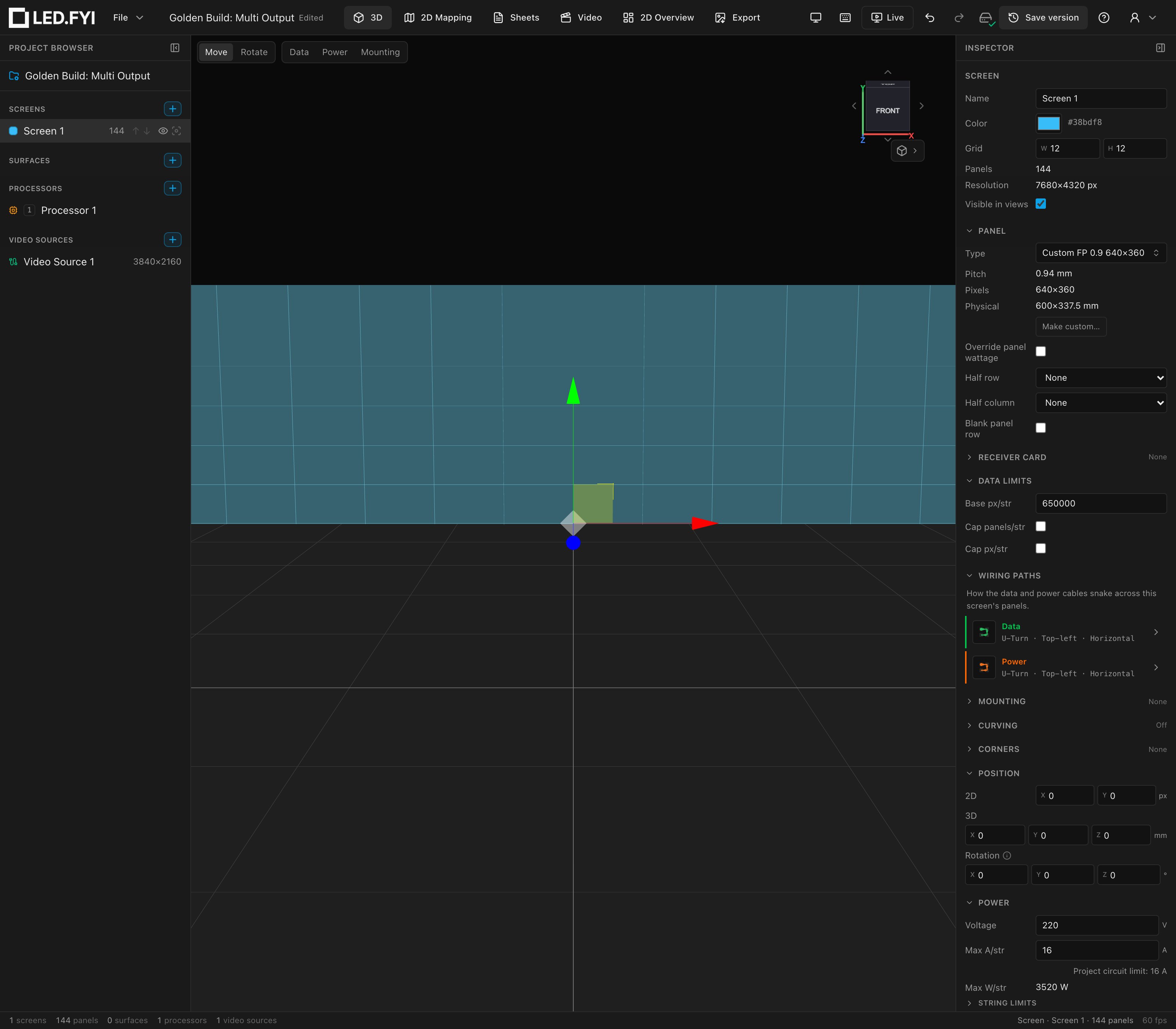
Two things worth noticing at this stage:
- Wiring (computed) already shows Data strings 72. With no processor model yet, the screen splits strings against the conservative default of
650,000px per string. The processor you pick in act 3 replaces that. - The Inspector shows a Larger than one processor notice: the 8K screen is wider and taller than the current 4K canvas. Expected: the 2×2 layout in the next act grows the canvas to match.
Offline vs. signed in
Offline (or signed out), the authored panel is embedded in this document only. Signed in with cloud configured, Create custom… also saves it to your personal library for reuse; see Custom equipment.
3. One Helios, four 4K inputs
The Helios is a modular processor: until you fit cards it has no inputs and no outputs. You'll give it a four-input 12G-SDI card, stitch those four 4K inputs into one 7680×4320 canvas with a 2×2 layout, and fit an eight-port 10G fibre output card. See Outputs, canvases & multi-output for the general model.
- Select Processor 1 in the tree. In the Processor canvas section, open the Processor picker, search for
Helios, and pick Megapixel Helios (see Choosing a processor). A Modular chassis badge appears under the picker, with Input cards and Output cards → wall sections below; until cards are fitted, the Video sources and Ports & strings sections only say which card is missing. - Set Layout to
2x2now, while the processor has no input card. A Helios with input ports on a1x1layout shows one input at a time (Switched) and hides the Layout field; on2x2its inputs tile (Stitched) as soon as the card is in. - In Input cards, pick HELIOS 4× 12G-SDI (SFP+ bank) for Slot 3. In Output cards → wall, pick HELIOS 8× 10G Fibre (SFP+ bank) for Slot 4.
The Signal section now reads the fitted card's figures, at 10-bit / 24 Hz:
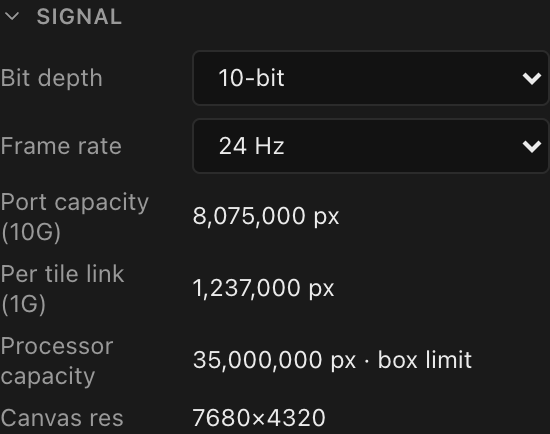
| Read-out | Value | Meaning |
|---|---|---|
| Port capacity (10G) | 8,075,000 px | What one 10G trunk carries at this operating point |
| Per tile link (1G) | 1,237,000 px | What one 1G switch downlink delivers to a tile: the per-string ceiling |
| Processor capacity | 35,000,000 px · box limit | The HELIOS's published total; the 8K wall is 33,177,600 px, so this design uses 95% of the box |
| Canvas res | 7680×4320 | Four 3840×2160 tiles in a 2×2 grid; the wall fits, and the screen's overflow notice is gone |
Why 24 Hz and not 23.976
The fibre card publishes only whole-number frame rates, so fitting it moves the Helios from its chassis default of 23.976 Hz to the lowest combination the card offers, 24 Hz. If you run a fractional broadcast rate on the real box, check the card's capacity table: the per-tile figure at 10-bit / 24 Hz is the same 1,237,000 px the bare chassis quotes at 23.976.
Add three more video sources: click + next to Video Sources in the tree three times. Each new source arrives already numbered in sequence (
Video Source 2,Video Source 3,Video Source 4), so just click each one's 4K preset as it is created.Select Processor 1 again. The section is now Video input ports, in Stitched (tiled inputs) mode, with one row per port. Input 1 · 12G-SDI #1 already carries
Video Source 1; set Input 2 · 12G-SDI #2 →Video Source 2, Input 3 · 12G-SDI #3 →Video Source 3, and Input 4 · 12G-SDI #4 →Video Source 4.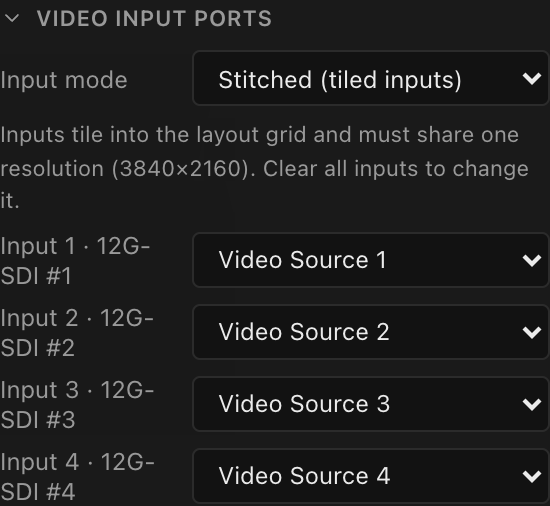
Inputs fill the layout row by row: input 1 is the top-left quadrant, 2 top-right, 3 bottom-left, 4 bottom-right. The hint under the mode reads "Inputs tile into the layout grid and must share one resolution (3840×2160)"; every dropdown only offers 3840×2160 sources, so a mismatched feed can't be plugged in. See Inputs & input modes.
4. Let the frame rate size the strings
Each panel is 640 × 360 = 230,400 px. At 10-bit / 24 Hz each tile link carries 1,237,000 px, so a string maxes out at 5 panels (5 × 230,400 = 1,152,000 px; a sixth would blow the cap). There is nothing to type: once a screen's processor has a model, the processor's Per tile link (1G) figure is the per-string ceiling, and the screen's own Base px/str is ignored. See Data path for how strings split.
Select Screen 1 and check Wiring (computed): Data strings has dropped from
72to29: twenty-eight strings of 5 panels and one string of 4.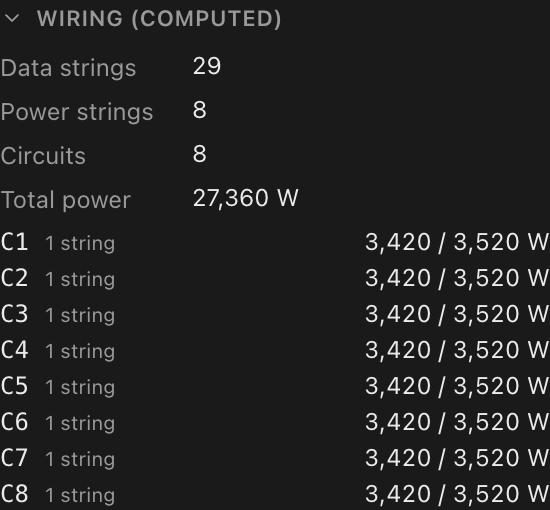
The frame rate is doing the work: at 10-bit / 60 Hz the same tile link carries only 482,000 px (two of these panels), and the wall would need 72 strings.
The screen's power defaults need no change: 220 V working voltage and 16 A per string (Max W/str 3520 W). With the 190 W tile that's 18 panels per power string: 8 power strings, 8 circuits at 3,420 / 3,520 W each, 27,360 W total. See Screen power settings.
5. Five switches on five 10G trunks
The fibre card's 10G trunks don't feed panels directly; each trunk lands on a switch that fans out to 1G panel ports. 29 strings need 29 ports; at 8 ports per switch that's five switches. See Switches and trunks.
With Processor 1 selected, open the Add switch… picker in the Switches section, search
M4200, and pick Megapixel M4200-10MG. It lands on Trunk A.Repeat four more times. You now have five M4200-10MG switches on Trunks A–E, and the section reports
3 of 8 trunks free.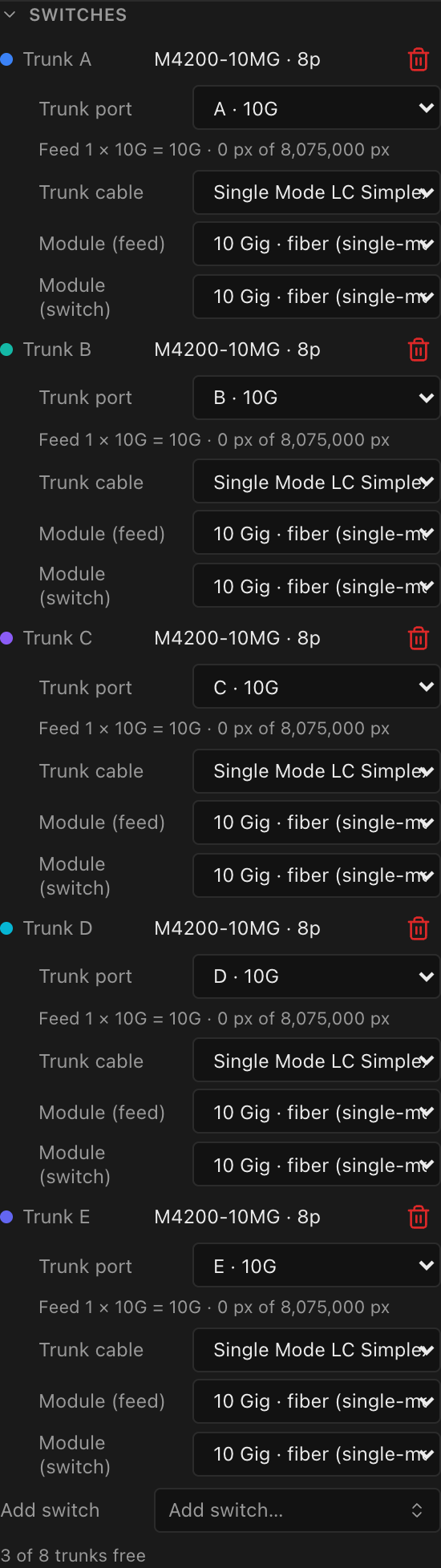
In String assignment, click Balance. All 29 strings get ports,
6 / 6 / 6 / 6 / 5across the five switches:S1–S6on1-A1–1-A6,S7–S12on the B switch, and so on toS25–S29on1-E1–1-E5. Each string row shows its load against the cap (1,152,000 px · 93% of 1,237,000 px), and the header readsProcessor total 33,177,600 px · 95% of 35,000,000 px. Every port label starts with the processor's tag,1(see the processor tag).
Fill or Balance
Fill packs strings onto ports in order, Balance evens the load out across the switches, and every string row has a port dropdown if you want to match a paper plan exactly. See String assignment.
6. One surface across all four inputs
Because the Helios stitches its four inputs into one canvas, the wall needs just one surface placement: it covers the whole 7680×4320 composite, and each input draws the quadrant that lands on its tile. There are no crops to set up.
Click + next to Surfaces in the tree and choose Screen 1 under From Screen. This creates a surface linked to the screen, pre-loaded with the Data path test pattern (the moving-arrows pattern that draws every panel's string position).
Look at the surface's Placements list: one placement,
Video Source 1 · 7680×4320 · linked. It is named after the first input, but it spans all four.
Open the Video workbench. Processor 1's canvas shows the four sources as tiles of one
7680×4320frame, and the pattern runs straight across the seams: each panel's label continues from one input into the next.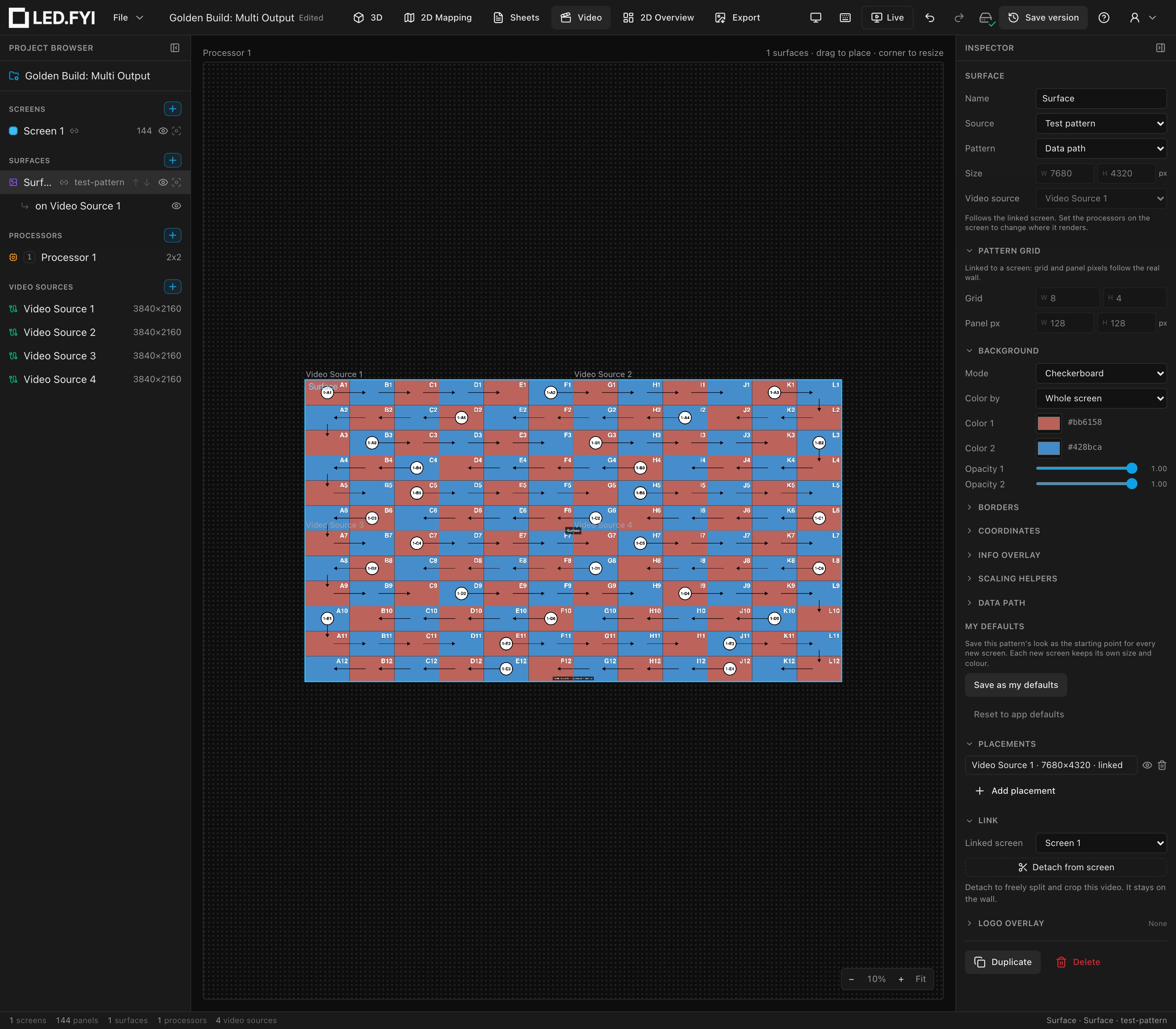
For more on stitched canvases and placements, see On a stitched canvas, a placement covers the whole wall and Feeding screens video.
7. Power path and the finished wall
One last touch: route power in a Zig-zag running vertically (data stays on the default U-Turn / top-left / horizontal, which you already have).
- Select Screen 1, and in its Wiring paths section click the orange Power row. Pick the Zig-zag route that starts top-left and runs vertical (its tooltip reads
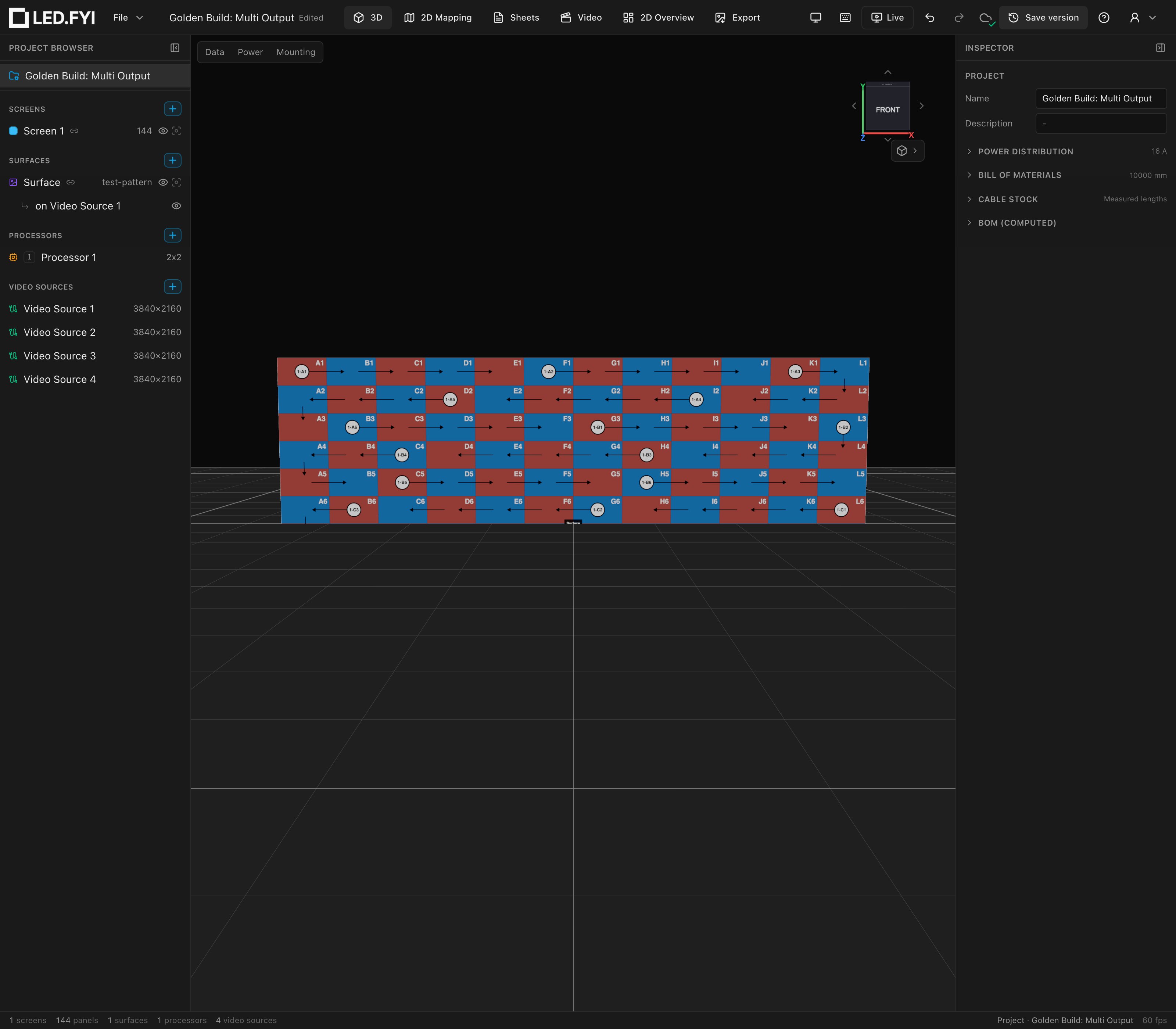
Top-left · Vertical · Zig-zag), then click Done. See Seeing your wiring for the overlays, and Power for circuits. - Switch back to the 3D workbench and select the project row at the top of the tree. The wall runs the data-path pattern edge to edge (one seamless 8K image fed by one processor through four inputs), and the Inspector shows the project's sections; unfold BOM (computed) for the parts list.
What you built
| Piece | Result |
|---|---|
| Screen | 12 × 12 = 144 custom 640×360 tiles → 7680×4320 px (8K), 7.2 × 4.05 m |
| Processor | 1× Megapixel Helios with a HELIOS 4× 12G-SDI input card and a HELIOS 8× 10G Fibre output card, 10-bit / 24 Hz |
| Canvas | 2x2 stitched layout → four 4K video sources on inputs 1–4 |
| Strings | 29 data strings (max 5 panels each under the 1,237,000 px per-tile-link cap) |
| Switches | 5× Megapixel M4200-10MG on 10G trunks A–E |
| Surface | one 8K data-path surface in a single linked placement spanning all four inputs |
| Status bar | 1 screens · 144 panels · 1 surfaces · 1 processors · 4 video sources |
The computed BOM confirms it: 144 panels, the Helios and its two cards, 5 switches, 29 first data cables (one per string), 5 single-mode LC trunk cables, and a 10G SFP module at each end of every trunk.
Where to go next
- A screen too big for one processor entirely? Split it across two: Split a big screen across two processors
- Add backup switches and ports: Multiscreen + redundancy
- Check the wiring the way the crew sees it from behind the wall: the 2D Mapping Back view
- Turn this build into paperwork: Drawings (PDF) and Bill of materials
- The full processor model behind act 3: Modular processors, Inputs & input modes and Outputs and canvases