

Appearance
Power: strings, circuits & buffers
The power side of the wiring engine chains panels into power strings (daisy-chained power runs), splits them against a watt budget derived from W = V × A, and groups strings into circuits (the physical plugs) against the same per-screen amp limit. Like everything in the wiring engine, it recomputes live on every edit.
The power path
Each screen's power route is configured exactly like the data path (pattern, start corner, direction) from the orange Power row of the Screen inspector's Wiring paths picker, and can be rewired by hand independently of the data wiring. Both paths start out on the same default route (U-Turn / top-left / horizontal, or whatever the wizard's Wiring step chose for that screen), so the power run initially shadows the data run; edit either without affecting the other. To check a power run the way the electrician will see it from behind the wall, switch the 2D Mapping workbench to Back view.
Splitting a screen across processors does not touch the power wiring
Power runs come from a distro or breaker panel, which knows nothing about processors, so a screen is always chained as one whole screen for power, no matter how many processor outputs or canvases its panels are spread across. Splitting a big screen into several video slices on separate processors changes only the data wiring; the power strings and circuit numbers stay exactly as they were.
A power run can also be drawn straight from one screen into the next when the cable really does daisy-chain across the gap: never automatically, only when you draw it, and it splits on the stricter of the two screens' watt limits.
Per-screen electrical settings
Select a screen in the left rail: Inspector → Power.
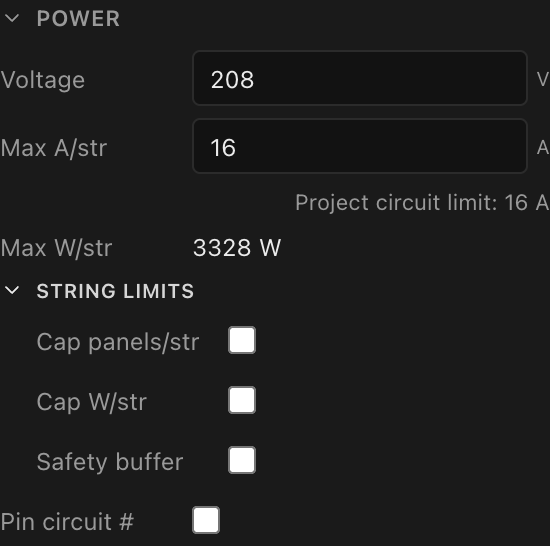
| Field | What it does | Default |
|---|---|---|
| Voltage | The circuit working voltage (V). | 220 V when the screen carries no value |
| Max A/str | The amp budget per power string. It can never go above the project's Circuit amps, only lower, and the line under it names that limit and opens it. | the project's Circuit amps |
| Max W/str | Read-only: the hard watt limit per string: volts × amps (after the Circuit amps cap). | derived |
| Pin circuit # + Start # | Fixes this screen's first global circuit number; downstream screens continue after it. | off |
| Pinned circuit numbers notice | Appears only when circuits on this screen carry hand-pinned numbers; Clear pins removes them (one undo step). See What a pin is. | hidden when none |
Under String limits (folded away unless the screen already sets one, because most screens never need them):
| Field | What it does | Default |
|---|---|---|
| Cap panels/str | Optional maximum panels per power string, splitting runs earlier than the watt limit would. | off (seeds at 10) |
| Cap W/str | Optional watt cap below the hard V × A limit. | off (seeds at V × A) |
| Safety buffer | Per-screen headroom override. See buffers below. | off |
Screens that mix full and half panels
Finish a wall with a half-height row and the screen now holds two panel sizes drawing two different wattages. Both String limits caps stay available on such a screen, both stay live, and the engine splits at whichever bites first. There is no automatic switch between them.
A half panel draws half the watts. Whether the screen names a real half product or not, the engine charges a half cabinet its own wattage: the product's when there is one, half the full cabinet's otherwise. The heat load read-out follows the same figure.
A half panel counts as one panel. Cap panels/str counts physical cabinets, not panel-equivalents: set it to 10 and you get runs of ten boxes, whether those boxes are full-height or half-height. So a stretch of half panels stops at the same count as a stretch of full ones, and lands well under the watt budget, because it is drawing roughly half as much. That is the behaviour to expect, and it is deliberate: the cap answers "how many cabinets will I plug into one run", which is a question about connectors and cable, and a half cabinet still needs its own connector.
Two consequences worth planning around:
- If you want the breaker to decide, leave the panel cap off. The watt budget already accounts for a half panel drawing less, so Cap W/str (or the plain
V × Alimit) will happily pack more half panels onto a run than full ones. Turning a panel cap on top of that deliberately stops it short. - A cap sized for full panels is stricter than you might expect on the half row. "12 panels per circuit" worked out from full-panel wattage still cuts the half row at 12, not at 24.
Coming from V1?
V1's Screen panel swapped its Max Panels Per Circuit box for a Max Watts Per Circuit box the moment a screen carried more than one panel wattage; you could not set a panel count on a wall with a half row. LED.FYI keeps both controls on every screen and applies both, so a project you could not express in V1 is expressible here. The stricter reading is the intended one; nothing falls back to watts on your behalf.
Note that the data-side Cap panels/str behaves differently: it is withdrawn on a screen that mixes panel sizes, because a data cap has to be converted into pixels to mean anything and mixed panels have no single pixel figure. See Screens that mix panel sizes. A power cap needs no conversion (a cabinet is a cabinet), which is why it stays.
Data limits are not here
A screen's data-string limits (Base px/str, Cap panels/str, Cap px/str, Px/str, Effective) live in their own Data limits section under Receiver card, covered in Data path & string splitting. The panel wattage override moved too: it is an equipment property, so it now sits in the Panel section as Override panel wattage.
The same fields are summarized from the screen-management angle in Per-screen power & string limits.
How a panel's wattage resolves
The engine resolves each panel's draw through a five-tier chain; first match wins:
- the panel's own override (Panel inspector → Power → Override W + Wattage, seeds at
100W), - the screen's override (Panel → Override panel wattage + Panel W),
- the panel type's max wattage from the equipment library (scaled down for shaped corner panels),
- the screen's legacy default wattage (imported V1 projects),
100W as the last resort.
When tier 1 or 2 sets a panel below its type's rated max, the strings and circuits are sized for that reduced draw. The Power Wiring and Circuit Schedule paperwork then warns that the processor must hold the output there (naming the calculated watts and the lowest share of the rated max on the screen), and a panel type that publishes a per-cabinet max current has that current scaled by the same ratio, so the extra panels fit the amp budget too.
Disabled panels and blank spacer panels are electrically dead: they draw nothing and join no power string.
Safety buffers (headroom)
Real installs aren't engineered to 100% of the breaker. The Safety buffer block derates the string and circuit sizing so runs are planned with headroom. It exists at two scopes: Project inspector → Power distribution (the default for every screen) and Screen inspector → Power (overrides the project default for that screen; the scope hint under the fields spells this out).
Enabling it seeds 20% headroom and reveals:
| Field | What it does | Range / default |
|---|---|---|
| Headroom % | Percent of the budget held back: 20 sizes strings to 80% of the limit. | 0–90, seeds 20 |
| Usable V | Percent of nominal voltage assumed actually available (plan for sag). | 1–100, default 100 |
| Buffer amps | Also apply the buffer to the per-cabinet max-current budget. | off |
| Cap cabs/run + Cabinets/run | Hard cap on cabinets per power run (combines with Cap panels/str; the smaller wins). | off, seeds 10 |
The screen scope shows a live Buffered W/str readout: the exact derated watt limit the engine splits on. Every buffer field defaults to a strict no-op, so untouched projects compute exactly as before.
Circuits: grouping and labeling
Power strings become physical circuits according to the project-wide config. Select the project root in the left rail: Inspector → Power distribution.

| Field | What it does | Values / default |
|---|---|---|
| Circuit amps | The project-wide ceiling for every screen's Max A/str: a screen can only go lower. Each screen's strings, circuits (combined ones included) and power paperwork use the lower of the two; raising Circuit amps never changes a screen's own value. A circuit combined across two screens uses the stricter screen. | from the document |
| Combine | How strings group into circuits. | Off (each string is its own circuit) · Auto (greedy-pack adjacent strings while they fit the budget) · Manual (you group by hand, below). Default Off |
| Labels | Circuit naming style. | Single · Multi (grouped) · Multi + distro. Default Single |
| Prefix (Single) | The prefix before the global circuit number: C gives C1, C2…. | from the document |
| Group prefix / Group size / Group labels (Multi) | Grouped naming: prefix + group + position: PD1.2 = group 1, position 2. Group size sets circuits per group; Group labels picks Numeric (PD1.2) or Alpha positions (PDA.2, with a Z→AA rollover). | from the document |
| Distro prefix / Distro labels / First distro / Multis per distro / Circuits per multi (Multi + distro) | For a show fed from more than one distro: distro letter + multi + position, so A1.4 is distro A, multi 1, circuit 4 and B1.4 is the same spot on distro B. Multis per distro sets how many multis one distro feeds before the next letter starts; the multi number starts again at 1 on each distro. Distro labels picks letters (A1.4) or numbers; numbered distros are followed by the separator so they stay readable (1.1.4, 2.1.4). First distro picks the project's starting distro from a list (C makes labels begin C1.1). Distro prefix is optional text before the letter and is blank by default (PD gives PDA1.4). The panel shows where distro A ends and distro B begins. To move a screen onto the next distro, pin its start number (below). | Multis per distro default 4 |
| Separator (Multi and Multi + distro) | The character between the multi and the circuit position: . (A1.4), - (A1-4), /, _ or :. | Default . |
Auto never rejects the first string
In Auto mode the first string of a circuit is always accepted, even if it alone exceeds the budget. Over-budget circuits are flagged (in the readouts below and on the circuit-schedule sheet), never blocked.
Circuit numbers: pinning and overrides
Circuit numbers are global across the project, handed out in the project browser's screen order (the order the screens are listed in the left rail) and left to right within each screen. To choose which screen numbers first, reorder the screens with the browser's up/down arrows; the numbers follow live. Two tools bend the numbering to match the distro paperwork:
- Pin a screen's start: Screen inspector → Power → Pin circuit # + Start # fixes the screen's first circuit number; screens after it continue from there.
- Re-assign one circuit's label: in the 2D Mapping view, right-click the panel that heads a power chain (position 1): the menu offers Re-assign circuit label, whose submenu lists every label the project's labelling scheme can produce (
C1, C2, C3 …on a single distro;A.1 … A.6, B.1 …on a multi-cable one;A1.1 …thenB1.1 …on a multi-distro one), and (once pinned) Reset circuit number (auto).
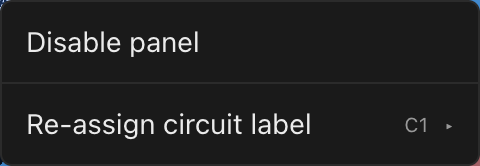
You choose from the generated list rather than typing, so every label you can pick is one the engine honours. Pins are deduplicated globally: a label another circuit has already pinned is shown greyed out and marked in use. Full walkthrough: Re-assigning a circuit label.
Where's the menu?
The circuit items only appear when you right-click the panel at position 1 of its power chain, with a single panel selected. Toggle the Show: Power overlay on to see which panels carry the circuit start chips.
What a pin is, and how to see one
Both tools above create a pin: a circuit number you chose by hand, stored on the screen. A pinned number always wins: the engine gives that circuit exactly the number you picked, and every automatically numbered circuit skips it. That is what makes pins useful, and also what makes a stray one confusing: pin a few circuits to C2–C7 on one screen and the engine's own count has to jump around them, so a wall can read C18, C2, C3 … C7, C19 even though nothing else changed. Pins are also tied to the circuit's position on its screen (its local index), so re-sizing strings can quietly hand a pin to a different column.
You can always tell a pinned number from an automatic one:
- On the 2D power overlay, a pinned circuit's start chip carries a small pin mark on its shoulder. Automatic chips have none.
- In the right-click menu, the same pin mark sits beside the current label on the Re-assign circuit label row, and Reset circuit number (auto) is offered only for a pinned circuit.
- In the Screen inspector's Power section, a screen that holds any pins shows an amber notice ("6 circuit numbers on this screen are pinned by hand") with a Clear pins button that removes every pin on that screen in one undo step. The notice also counts stale pins separately: pins left behind by circuits that no longer exist (the engine ignores those, but they come back the moment the circuit count grows again). No pins, no notice. Clear pins leaves the screen's Pin circuit # start number alone; that has its own checkbox right above it.
Renumbering everything in order
Once your strings are sized the way you want them (wattage, amps per string, pattern, combines), one click puts every circuit number back in order, regardless of any pins: select the project name at the top of the left rail, open Power distribution, and click Renumber all circuits (also in the ⌘K palette as Renumber All Circuits). The hint under the button says how many numbers are currently pinned by hand.
Renumbering clears every pinned circuit number and every pinned start number on every screen, then lets the engine count C1 onward in screen order and left-to-right within each screen. It only relabels: string sizes, wattage, manual combines and cross-screen circuits are untouched. A Renumber all circuits? dialog states exactly what it will clear ("This clears 7 manually pinned circuit numbers. It also clears 2 pinned start numbers.") or, when nothing is pinned, that the circuits will simply be renumbered in order. Click Renumber to go ahead. It is one undo step: ⌘Z brings every pin back.
When to reach for which
Re-assign one label when the paperwork needs a specific circuit on a specific number. Clear pins when one screen has drifted. Renumber all circuits when you want the whole project tidy again and are happy to let the engine number it. It is the "start clean" button, and it works even when the picker will not offer you the number you want because another pin already holds it.
Manual combine and uncombine
With Combine = Manual, you group strings from the same right-click menu on a chain head. A Power circuit combine block lists each adjacent string (circuits group consecutive strings, so only the ±1 neighbours are offered) as Combine with C3, with the live combined wattage alongside, flagged red with over when the total exceeds the W = A × V budget. Uncombine from <label> splits the string back out of a multi-string circuit.
Combining past the budget is refused: a shared circuit over its screen's amp limit (Max A/str, capped at Circuit amps) trips the breaker mid-show, so the app declines rather than warning. Joining an existing group adds your string's watts to the whole group's total.
Below the adjacent candidates, an Other screens block offers the circuits on other screens: a breaker doesn't care which screen a run belongs to, so two lightly-loaded runs on two different screens can share one plug whenever there's headroom. The combined circuit takes the number of the screen you combined from, and its legs letter across the seam (C1a here, C1b over there) exactly as they would within one screen. See combining across two screens.
What combining does to your labels and your parts list
Two things follow automatically from a combine, and both matter on site.
The circuit's feeds get lettered. A circuit carrying one string keeps its plain label: P3. Combine two strings onto it and the two feeds become P3a and P3b; three become P3a/P3b/P3c. The letters run in string order, and they flow through everywhere the label appears (the power overlay on the 2D canvas, cable labels, the printed label CSV, and the drawing set), so the electrician can tell which leg of the splitter goes where. Uncombined circuits are untouched, which means a project that never combines produces exactly the labels it always did.
You need a splitter, and it lands on the parts list. A circuit shared by two strings physically needs a two-fer; three needs a three-fer. LED.FYI derives that from the combine itself (there's nothing extra to assign) and adds one per combined circuit to the bill of materials, naming the real product where the library has one. So the moment you combine, the two-fer you'll have to pack is already on the pick list.
Why combine at all
Each circuit costs you a distro output. Two lightly-loaded strings that comfortably fit one W = A × V budget can share a single circuit through a two-fer, halving the distro channels for that run, which is exactly the trade a touring power plot is usually making.
Reading the results
Wiring (computed)
Every screen carries a live summary in Screen inspector → Wiring (computed): data strings, power strings, circuits, total power, and a per-circuit list of label · N strings · used / limit W with a red OVER flag past the budget. It is recomputed by the engine on every edit, never a stale stored value.
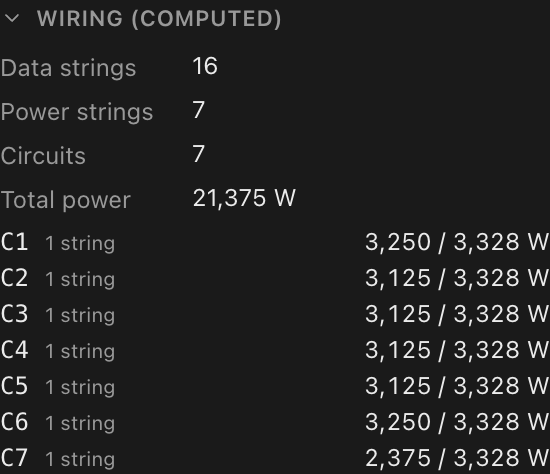
The Panel inspector has the matching per-panel readouts, live: Data str shows the string's project-wide S-number as S12 · pos 3, and Power str shows #string · pos N.
Heat load
The screen's electrical power rolls up into a thermal estimate in Screen inspector → Heat load: maximum load in watts, maximum heat in BTU/hr, approximate cooling tons, and average load in watts when the panel type lists an average wattage (with no average listed, that row is left out). When the panel's library record publishes no heat figure, the numbers derive from electrical power and the section footnotes "Estimated from electrical power (no published heat spec)." The same model prints on the Heat Load (BTU) sheet block, so the inspector and the paperwork never disagree. Spacer and disabled panels are excluded.
The sheet block adds two electrical rows: Supply voltage (the screen's working voltage) and Maximum current, the screen's full-white draw divided by that voltage. Maximum current is the same figure as the Total row of the Circuit Schedule, and it always uses the panels' electrical draw, never a published heat figure. It assumes single-phase power.

Everywhere else
Power circuits draw in the warm palette on the 2D and 3D overlays, verify on the wall via the power-path test pattern, and print on the Power Wiring and Circuit Schedule sheets. See Seeing & exporting your wiring. Power-circuit interaction in the mapping view is also covered from the workbench angle in Power circuits in the mapping view.