

Appearance
Inputs & input modes
A processor's inputs are where video sources plug in. When the app knows the processor's physical input ports (a modular processor's fitted input cards, or the built-in inputs of a fixed box such as a Brompton Tessera), you bind a source to each port and, where the hardware allows it, choose how those inputs compose onto the canvas: Switched (one live input, full canvas) or Stitched (inputs tiled side by side). Otherwise you bind one source per canvas tile.
Binding video sources
Select a processor and find the source-binding section in its Inspector, below Signal (and below the card sections on a modular processor). Its shape depends on what the app knows about the processor's inputs:
| Processor | Section title | One row per… | Empty row reads |
|---|---|---|---|
| No model yet, or a model with no typed inputs (most Novastar boxes) | Video sources | canvas layout tile: Tile 1 … Tile N (N = layout columns × rows) | None |
| A model with built-in input ports (Brompton Tessera SX40, S8, SQ200) | Video input ports | physical port, labelled with its transport: Input 1 · HDMI 2.0 #1, Input 2 · 12G-SDI #1 | Unassigned |
| A modular chassis with input cards fitted | Video input ports | physical port across the fitted cards, in slot order: Input 1 · HDMI 2.1 #1, … | Unassigned |
| A modular chassis with no input card | Video sources | no rows; the section only says "No input card installed. Add an input card under "Input cards" above before assigning a video source." | n/a |
Tile rows follow the canvas layout; port rows follow the hardware, and the input mode (below) decides how they reach the canvas.
A new project's Processor 1 comes wired to Video Source 1; there is only one possible answer, so a simple one-source project works out of the box.
Every processor you add after that starts with its first input empty and waits for you to choose. Which feed goes to which box is a decision the app can't make for you: picking one would create a connection you never made, and one you'd have no reason to look for until something looked wrong. Feeding the same source to two processors is still allowed; you just have to set it yourself.
On a modular processor, a card that spans more than one slot (the Megapixel HELIOS 100G card fills both VFMC slots) fills the slot it covers as well. That slot reads N/A in the card list, and only the spanning card's ports appear here. Should an imported file record a second card in a covered slot, that card's ports are not offered: the processor never advertises inputs the hardware doesn't have. The extra card stays in the file, so nothing is lost. See Modular processors.
Re-patching an input that feeds a linked screen
Changing which source sits on an input moves every linked screen on that processor onto the new feed: a linked screen's picture always follows whichever input feeds its processor. When a change would genuinely move a screen's picture onto a different source, the picker asks before doing it:
This moves a linked screen onto another feed
Screen 2's surface placement moves from Video Source 1 to Video Source 2. A linked screen's surface follows whichever video input feeds its processor, so the picture lands where the screen sits on the processor canvas.
Cancel · Change the input
Picking the source that's already there, filling an empty input, or re-patching a processor with no linked screen on it stays silent. So does unplugging an input (None / Unassigned): the processor goes dark, but every link stays intact, ready for when a source is bound again. Where the moved picture lands, and why it may overlap something, is covered in When a processor's input changes.
Input modes
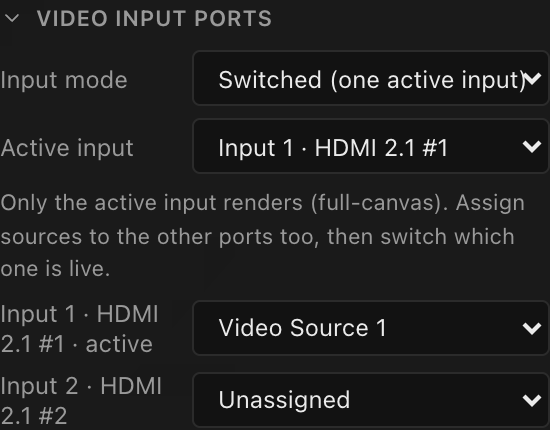
Input modes apply to a processor whose physical input ports the app knows: a modular chassis with input cards fitted, or a fixed box with built-in inputs. A processor bound by tile always tiles its sources by layout (it acts Stitched) and shows no mode selector.
The Input mode selector appears when a processor's model genuinely supports more than one way of composing its inputs. A model that only has one (such as a Brompton Tessera SX40 or S8, which can only ever show one input at a time) simply acts Switched and shows no selector, because there is nothing to choose.
Which modes a model offers is part of its equipment-library record, so it reflects what the box actually does rather than an inference from its port count. That distinction is real: the SX40, the S8 and the SQ200 all have two inputs, but only the SQ200 can combine them into one picture; the other two switch between them. Where a model doesn't state its modes, LED.FYI falls back to reading its specs (more than one simultaneous input ⇒ Stitched is offered).
| Mode | What it does |
|---|---|
| Switched (one active input) | Exactly one input renders, full-canvas. Choosing Switched snaps the canvas layout to 1x1. An Active input dropdown picks which physical port is live (the first port by default); the live port's row is tagged · active. This models a processor input switcher at design time: assign sources to the other ports too, then flip which one is live. |
| Stitched (tiled inputs) | Inputs tile into the canvas layout grid, one source per tile, building a composite larger than any single input. All tiles must share one resolution (see below). |
| Layered (free windows) | Inputs are scaled into free-floating windows on the canvas rather than tiled into a grid. No processor in the catalog offers this mode yet, so you won't see it in the dropdown, but a project that already carries it (a V1 import, for instance) now renders it properly as layered windows, rather than falling back to a tiled Stitched layout. |
When you haven't set a mode explicitly, the app resolves one automatically: a processor with input ports on a 1x1 layout acts Switched; everything else acts Stitched. The Layout field in the Processor canvas section only appears while the processor acts Stitched, so to stitch a modular processor's inputs, set the layout before you fit its first input card, or switch Input mode to Stitched afterwards.
If the processor feeds a linked screen, changing its input mode or its layout asks first (Change the stitched input layout?) because re-tiling the inputs rebuilds how every screen it feeds is laid out across them (Change layout / Cancel).
Switching modes never loses assignments
Source assignments are kept per physical port. Flipping to Switched only changes what renders (and snaps the layout to 1x1); the other ports keep their sources, ready for when you switch back or change the active input.
The stitched same-resolution rule
Real stitching processors tile inputs of identical resolution, and LED.FYI enforces the same by construction:
- The first bound input establishes the stitch resolution; the hint under the mode selector states it: "Inputs tile into the layout grid and must share one resolution (W×H). Clear all inputs to change it."
- Every other port's dropdown then only offers sources matching that resolution (plus whatever is currently bound), so a mismatch can't be created.
- A pre-existing mismatch (e.g. from an import) is flagged in red under the offending row: "Stitched inputs must all be W×H."
- To change the stitch resolution, clear all the inputs first, then bind the new sources.
- Switching Input mode to Stitched while the bound inputs have different resolutions is refused with Can't stitch mixed resolutions. Match the input resolutions first, or stay Switched.
Input limit & bandwidth warnings
For each input port with a bound source (on a fitted card or a fixed box's built-in input), LED.FYI checks the source against the port's and card's limits and the transport's physical bandwidth. Violations appear as an amber line under the row, e.g. "Source exceeds the port bandwidth; exceeds the card's max width."
| Warning | Triggered when |
|---|---|
| exceeds the port bandwidth | The source's worst-case bandwidth exceeds the transport's line rate (see below). |
| exceeds the input's pixel-rate capacity | Width × height × frame rate is more than the input can process. |
| exceeds the port's max resolution | Source is wider or taller than the port's per-port maximum. |
| exceeds the card's max width / max height | Source exceeds a card-level dimension cap. |
| width isn't a multiple the card accepts | The card only takes widths in fixed steps, and the source's width isn't one of them. |
| exceeds the card's max resolution | Source has more total pixels than the card's maximum. |
| below the card's min resolution | Source has fewer total pixels than the card's minimum. |
| frame rate not supported by the card | The processor's frame rate isn't in the card's supported list. |
| color depth not supported by the card | The processor's bit depth isn't one the card accepts. |
A source that passes every limit but is bigger than the card's plug-and-play ceiling gets a softer amber note instead: "Source fits, but needs a capable source with a forced custom timing (a standard laptop/GPU won't output it)."
Bandwidth is estimated worst-case: RGB 4:4:4 at the processor's current bit depth and frame rate (pixels × bit depth × 3 × frame rate, plus a 25% blanking/encoding overhead), and compared to the transport's line rate:
| Transport | Line rate |
|---|---|
| HDMI 1.3 / HDMI 1.4 | 10.2 Gbps |
| HDMI 2.0 | 18 Gbps |
| HDMI 2.1 | 48 Gbps |
| DisplayPort 1.1 | 10.8 Gbps |
| DisplayPort 1.2 | 21.6 Gbps |
| DisplayPort 1.4 | 32 Gbps |
| DisplayPort 2.1 | 80 Gbps |
| DVI | 9.9 Gbps |
| 3G-SDI | 3 Gbps |
| 6G-SDI | 6 Gbps |
| 12G-SDI | 12 Gbps |
| ST 2110 (IP) · Fiber | treated as unbounded; only the dimensional caps apply |
Warnings are advisory
Nothing is blocked: an over-limit source still renders in the design. The bandwidth and frame-rate checks are skipped when the processor's bit depth or frame rate is unset (there is nothing to compute against). Any cap a card or port doesn't declare simply passes, so a card with no published limits is only checked against its transport's bandwidth.
One resolver everywhere
Every renderer (the 3D wall, the 2D Mapping raster, the Video workbench, PNG export and the Live Output window) resolves input placement through the same logic, so what you see always matches the selected mode.