

Appearance
The Sheets workbench
Sheets is where your wall design becomes paperwork: elevations, wiring diagrams, schedules and a bill of materials, laid out on real drawing pages you can rearrange, annotate and print. Sheets are part of your project, not a one-shot export. Every drawing block regenerates live from the wall design (change a screen and the elevation updates), while your page layout stays exactly where you put it.
Open it from the Sheets tab in the top bar, or press 3.
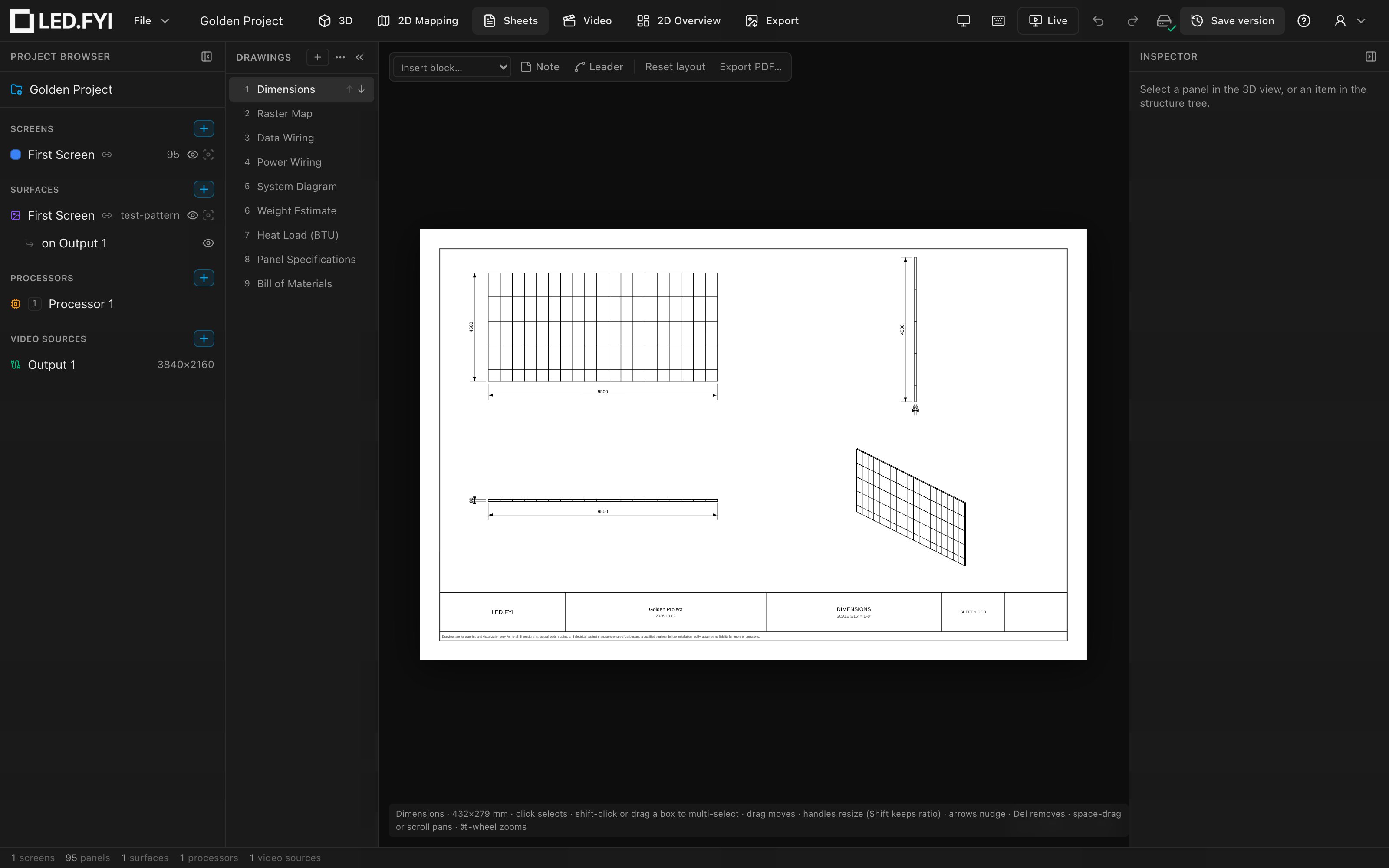
What you see is what prints: the page in the viewport is the exact drawing the PDF export produces, title block and all. See Drawings PDF export and DXF export for getting the finished set out of the app.
The standard drawing set
Every project has its drawing set already in place: eight-or-more sheets covering the whole client packet, live from the moment the project exists. There's no button to click and nothing to create: open any project and the sheets are already there, each one carrying one or more drawing blocks sized to fill the page.
| Sheet | Block(s) it carries |
|---|---|
| Dimensions | Wall Elevation, Side Elevation, Top Elevation and Isometric View, tiled 2×2 |
| Raster Map | Processor-canvas pixel map; see below |
| Data Wiring | Data Wiring diagram + Data Schedule, side by side |
| Power Wiring | Power Wiring diagram + Circuit Schedule, side by side |
| System Diagram | Block Diagram: the engineering signal-chain schematic |
| Weight Estimate | Panel, cable and mounting-hardware weight tables |
| Heat Load (BTU) | HVAC roll-up |
| Bill of Materials | Full equipment, cable and mounting counts |
The seeded wiring sheets draw the wall from the front. Crews wire from behind, so for a rear-view copy add another Data Wiring or Power Wiring block and set its Viewed from to Back; see Front and back views.
The Raster Map row splits itself, live, once your project has more than one processor canvas: one sheet per canvas that has its own picture, titled "Raster Map: <canvas name>", each carrying one Raster Map block scoped to that canvas. A canvas set up as another's backup shows the identical picture, so it doesn't get a sheet of its own; the primary's sheet instead notes which backup mirrors it ("Raster Map: Processor 3 (mirrored by Processor 3 Backup)"). A single-canvas project just keeps the one plain "Raster Map" sheet.
These sheets track your processors as you work. Each change lands in the same undo step as the processor edit that caused it:
| You… | The Raster Map sheets… |
|---|---|
| Add or duplicate a processor canvas | Gain a sheet for it after the other Raster Map sheets (or, going from one canvas to two, the plain "Raster Map" sheet splits into one per canvas in its place) |
| Delete a processor canvas | Lose that canvas's sheet |
| Rename a canvas | Retitle its sheet (or the primary's sheet, if it's the backup named in a note) |
| Designate a canvas as a backup, or clear it | Drop or regain that canvas's sheet, and update the primary's mirror note |
| Open an older project with one all-canvas sheet | Replace that sheet with the per-canvas set, in the same place in the list |
A sheet stays managed only while it's still what the app made: its one Raster Map block, unlocked, scoped to its canvas, with Titles on. Add anything else to the sheet (a note, a leader, another block), change the block's Scope, lock it, or turn its Titles off, and the sheet is yours: it's never retitled or removed again, even if its canvas is later renamed or deleted. An older project whose single Raster Map sheet you had already edited that way keeps it as it is and gets no per-canvas sheets. Moving or resizing the block, or turning Show picture, Surface labels or Source labels off, doesn't count as an edit.
Renaming a managed sheet doesn't stick
Typing your own name for a Raster Map sheet that's still managed isn't enough to claim it: the next time the project opens or a processor changes, its title goes back to "Raster Map: <canvas name>". Rename the processor canvas instead, or make one of the edits above first.
Prefer every canvas stacked onto one sheet instead? The block's manual All canvases scope is still there; see Scoping & splitting a block.
Everything beyond the standard set (a second copy of a block, a scoped elevation, an extra schedule) is one Insert block… away (see the drawing blocks reference), and the + button in the rail adds a new sheet: blank, one of the built-in sheets, or one of your saved drawing templates.
New sets start on ANSI Tabloid 11×17" paper in landscape, and follow your Preferences → Units live: mm/kg on Metric, inches and pounds on Imperial, changing the moment you change the preference. That holds until somebody picks units for the set in the Inspector, which pins it. See Paper sizes, standards, units & scale.
TIP
Sheet names are stamped in whatever language the app was running in when the project was created. They're yours to rename and print on the title block, so they don't re-translate later. Generated labels on the drawings (legends, table headers, match lines) do follow the language preference live.
INFO
Delete every sheet and the set stays empty; it's never silently recreated. Only a project that has genuinely never had a drawing set (including an older project opened for the first time) gets the standard eight seeded in.
The Drawings rail
The left column lists the set's sheets in print order, with their sheet numbers.
- Click a row to open that sheet (this also selects it, so the Inspector shows the sheet's settings).
- The active row shows
↑/↓arrows; reordering renumbers SHEET N OF M on every title block and updates match-line references live. - The + button in the rail header opens a menu: Blank sheet (named
Sheet,Sheet 2, …), any of the Built-in sheets, or My sheet templates (your saved sheet templates). The ⋯ next to it saves the whole drawing set as a template. Whichever you pick inherits the set's paper, standards, units, branding and title-block template. - Rename a sheet in Inspector → Sheet → Name; delete it with Inspector → Delete sheet (asks for confirmation, and it's undoable).
Navigating the page
| Gesture | What it does |
|---|---|
| Scroll wheel / trackpad scroll | Pans the page |
Space+drag or middle-mouse drag | Pans |
⌘/Ctrl + scroll | Zooms toward the cursor |
| − / + buttons (bottom right) | Zoom about the viewport center |
| Fit | Frames the whole page |
Zoom runs from 10% to 2000%; the view re-fits automatically when you switch sheets. The chip in the bottom-left corner shows the sheet name, the paper size in mm, and the gestures that apply right now (it changes while the Note or Leader tool is armed).
Selecting, moving & resizing
- Click selects the topmost object under the cursor. Drag moves it; objects are clamped to the paper, so nothing can ever be dragged off the page.
- Free blocks (tables, diagrams, notes) show 8 square resize handles; hold
Shifton a corner to preserve the aspect ratio. Minimum size is5 mm. - Scaled drawings (elevations, the curving plan) behave like proper drafting content: the selection frame hugs the drawn geometry (not a loose bounding box), and only the 4 corner handles appear, aspect-locked. Resizing steps the drawing through the standard drawing scales, and what you see mid-drag is exactly what commits when you release. You can't stretch an elevation out of true. See how scales snap.
- Every drag commits as one undo step on release.
Snapping & alignment guides
While you move an object, its edges and centers snap to every other block's edges and centers, and to the drawable area: the region inside the page margins and clear of the title-block strip. Cyan guide lines show the active snap. So "centered" means centered in the usable page area, never behind the title block.
Hold Alt to move freely without snapping. Snap distance is 6 screen pixels regardless of zoom, and a multi-selection snaps as one box, exactly like a single block.
Multi-select
- Shift-click toggles objects in and out of the selection.
- Drag on empty paper rubber-band-selects everything the marquee touches (
Shiftadds to the existing selection). A plain click on empty paper clears the selection back to the sheet. - With 2+ objects selected you get a thin frame per object plus a dashed group box. Dragging any member moves the whole group (locked members stay put). There is no group resize; moving and the arrange toolbar are the group operations.
The arrange toolbar
A floating toolbar appears top-center whenever something is selected, labelled with the count (N selected):

| Buttons | Available from | What they do |
|---|---|---|
| Center on sheet (horizontal / vertical) | 1 object | Moves the selection so its bounding box centers on the drawable area |
| Align left / horizontal centers / right / top / vertical centers / bottom | 2 objects | Aligns against the selection's own bounds |
| Distribute horizontally / vertically | 3 objects | Even gaps; the outermost objects stay put |
All arrange operations work on the visible extents (the tight drawn boxes), so what you align is what you see. Locked objects don't count toward the total and never move. Each operation is one undo step.
Keyboard
| Key | Action |
|---|---|
| Arrow keys | Nudge the selection 1 mm (Shift = 10 mm) |
Delete / Backspace | Remove the selected object(s) |
Escape | Clear the selection (or cancel an armed Note/Leader tool) |
Locking
Check Locked in the Inspector to pin an object. Locked objects show an amber dashed frame and become select-only: no move, resize, nudge or delete, and they're skipped by Reset layout and all arrange operations.
Placement & stacking order
Every selected object shows a Placement section in the Inspector (Position X/Y and Size W/H, in paper millimetres from the page's top-left, minimum 5 mm, disabled while locked), plus the Locked checkbox. Positions and sizes are kept to the nearest 0.1 mm, so the fields read cleanly (14.8, not 14.79999…) and a value you type is stored to that precision. Objects placed before this was introduced keep their old values until you move or resize them. The Order section stacks objects within the sheet: Front, Forward, Backward, Back (later objects draw on top by default). Blocks also show a read-only Source row, Live (follows the wall), confirming the drawing regenerates from the current design.
Reset layout
Reset layout in the toolbar re-seeds the current sheet's blocks into a near-square grid filling the drawable area. Notes and leaders keep their places, and locked blocks are skipped.
This button is the only re-layout in the app: Sheets never re-flows a page on its own, no matter how the wall changes underneath it. If a drawing outgrows its box, the drawing rescales inside the box. Your layout stays yours.
Undo & the command palette
Every Sheets action (insert, move, resize, group move, arrange, split, annotation and template edits, deletes) is exactly one undoable step (see Undo, redo & versions). Continuous gestures like drags and nudges coalesce, so undo steps stay meaningful.
The command palette (⌘K) carries the whole Sheets category: Add Sheet, Delete Sheet, Reset Sheet Layout, Delete Sheet Object, and the z-order commands (Bring to Front / Bring Forward / Send Backward / Send to Back). Delete Sheet Object is disabled while the object is locked.
Where to next
- Drawing blocks reference: every block kind and its options
- Notes, leaders & block styling: annotations, borders, title styling
- Title blocks & branding: templates, logo, disclaimer
- Paper sizes, standards, units & scale: ANSI/ISO, print units, drawing scales, pagination
- Drawings PDF export and DXF export for CAD: the Export PDF… toolbar button jumps straight to the Export workbench