

Appearance
Surfaces, placements & video sources
Three things carry video through a project: a video source is one processor output signal (a named raster that content is placed onto); a surface is a named piece of content with its own pixel buffer; and a surface placement puts (a region of) that buffer at a position and size on one video source. One surface can have many placements, across one or many video sources. This page is the full reference for all three.
They all live in the left sidebar: surfaces in the SURFACES group (with their placements nested under them as on <source> rows), and outputs in the VIDEO SOURCES group with their resolutions:
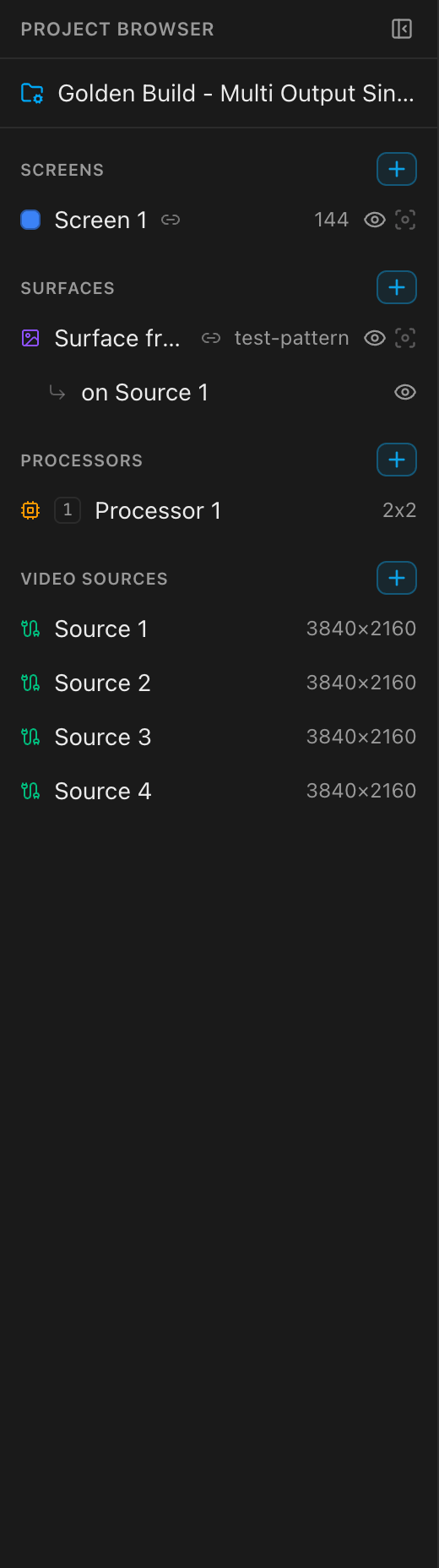
- Each surface row shows its source type (
none,image,video,test-pattern) as trailing text, plus two buttons, mute and solo, like a sound desk. The eye shows/hides all of that surface's placements at once; the isolate button beside it (four brackets closing on a point) hides every other surface instead, and turns amber while this one is the only one showing. Press isolate again to bring everybody back. ⌥-clicking the eye does the same thing as the isolate button. - A linked pair wears a link chip (a small, muted chain-link icon right after the name) on both rows: the screen's and the surface's. It's always there, not only while selected. Hover it for the contract: on the surface row,
Linked to screen "First Screen": this surface's position, size and video source follow that screen's panels automatically.; on the screen row, the mirror image. See Linking surfaces to screens. - Each nested
on <source>row selects that single placement and has its own eye toggle. A hidden placement's row dims, as does a surface row whose placements are all hidden. Placement rows have no isolate of their own; the isolate on the surface row above covers the group. - Isolating stays inside the SURFACES group. It never touches screens, and isolating a screen never touches surfaces.
- While anything here is hidden, the SURFACES header shows an amber
N hiddenbutton counting the hidden placements. Click it to show every placement again. Visibility changes are ordinary undoable edits.
Plan limits
In cloud-configured builds, capacity is plan-gated: Free = 1 surface and 1 video source, Pro = 12 surfaces and 4 video sources, Studio = unlimited. Offline/unconfigured builds are ungated. See Plans, billing & what each unlocks.
Video sources
Add one with the + on the sidebar's VIDEO SOURCES group, or ⌘K → Add Video Source. New sources are named Video Source N at 1920×1080. Select one to open its form:
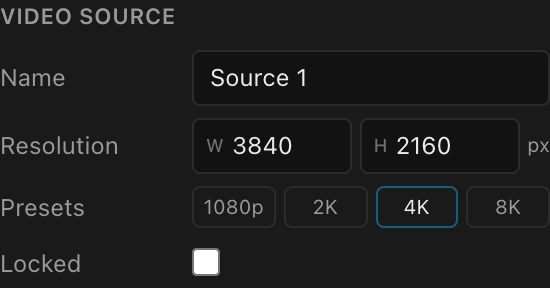
| Field | What it does | Default |
|---|---|---|
| Name | Free-text name, shown in the sidebar, pickers, and the Live Output dialog. | Video Source N |
| Resolution | The output raster in pixels, fully custom, any W×H ≥ 1. | 1920×1080 |
| Presets | One-click resolutions (below). The active preset highlights when the resolution matches it exactly. | n/a |
| Locked | Marks the output locked. | off |
The presets use LED-industry semantics; hover one for the exact pixels:
| Preset | Pixels |
|---|---|
| 1080p | 1920×1080 |
| 2K | 2048×1080 (DCI) |
| 4K | 3840×2160 |
| 8K | 7680×4320 |
Background

| Field | What it does | Default |
|---|---|---|
| Custom bg | Enables a custom background color, with a color picker. The background fills any region of the output not covered by a surface, and is also the letterbox-bar color in the Live Output window. | off (black #000000) |
| Opacity | Alpha of the background fill, 0–1. | 1.00 |
Opacity below 100% exports transparency
Background opacity below 1.00 renders true alpha: a PNG export of that output is (partially) transparent wherever no surface covers it. Handy for compositing; surprising if you expected black.
Download PNG & delete
- Download PNG renders this output's composite to a PNG file, the same export the Export workbench makes. Use this button for one output; use the workbench's PNG tab to tick several and get them as one archive. In the desktop app it opens the OS save dialog; cancel it and nothing is written, and if the file can't be written (say, the previous copy is still open in another program) the app says why and offers Save as…; see Where the file goes.
- Delete (also ⌘K → Delete Video Source) removes the output. Every panel, placement, and processor-canvas slot that pointed at it is reassigned to a surviving output. You can't delete the last video source: the project must keep at least one render target, so the command grays out.
Which output a processor shows in which tile of its composite is configured on the processor; see Outputs, canvases & multi-output.
Surfaces
Add one with the + on the sidebar's SURFACES group. The menu offers:
- New Surface: a blank surface (source None,
1920×1080buffer), immediately placed: on the first video source that has no placements yet, else the first one. - From Screen ▸ [screen]: a surface pre-linked to that screen, defaulting to the Data path test pattern so it immediately renders the screen's wiring map. (The reverse also exists: the SCREENS group's + menu has From Surface.)
The same actions are in the command palette: Add Surface, Add Surface from Screen, Duplicate Surface, Delete Surface, and Place Surface on Video Source.
Select a surface to open its form:
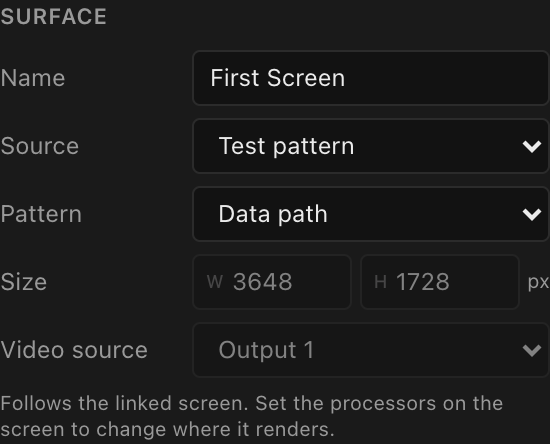
| Field | What it does | Default |
|---|---|---|
| Name | Free-text name, drawn by the surface-info and data-path pattern overlays, and used as the rectangle label in the Video workbench. | Surface N |
| Source | What the surface shows: None · Image · Video · Test pattern. See Media sources and Test patterns. | None (From-Screen surfaces: Test pattern → Data path) |
| Pattern | Which test pattern (shown only when Source = Test pattern). Switching patterns seeds that pattern's defaults. | Data path |
| Media | Upload/Replace button + status (shown for Image/Video sources). See Media sources. | no media |
| Scale | How image/video media fills the buffer: Fit · Fill · Stretch · 1:1 (media sources only; test patterns always fill the buffer). | Fit |
| Size | The surface's content buffer in pixels (W×H ≥ 1). Disabled when a placement of this surface is linked to a screen; the link sizes the buffer to the screen's pixel footprint. | 1920×1080 |
| Video source | Which output the surface renders on. This moves every placement of the surface at once, clamping each into the new output's bounds. A surface with no placements shows (not placed) until you pick one. | auto-placed at creation |
Two hints appear under the Video source dropdown when relevant:
- Linked:
Follows the linked screen. Set the processors on the screen to change where it renders.The dropdown is disabled; the screen's processor assignment decides the output. - Split across sources: when the surface's placements sit on more than one video source, the hint reads
Split across N video sources…. Picking a single source here first asks "Gather all placements onto one source?"; confirming pulls all placements onto it and undoes the split (undoable). To move just one slice, use that placement's own dropdown instead.
The Placements list
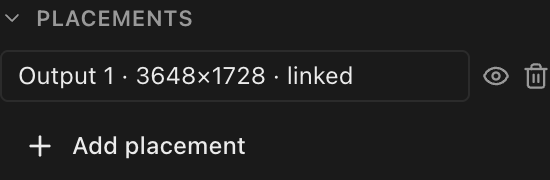
Every placement of the surface gets a row: <output name> · W×H, with a · linked suffix when it's screen-linked. Click the row to select that placement (opening its form); the eye hides/shows it; the trash deletes just that placement. Add placement creates a new one (on the first output; re-target it from the placement's form). A surface with no placements shows Not placed on any output.
Link, Duplicate & Delete
- Link → Linked screen links this surface 1:1 to a screen via its first placement; see Linking to screens.
- Duplicate copies the surface (named
<name> copy); it counts against the same surface cap as adding one. - Delete removes the surface and all its placements, cleaning up any screen/panel links that pointed at them.
Surface placements
Select a placement: click its rectangle in the Video workbench, its row in the surface's Placements list, or its on <source> row in the sidebar:
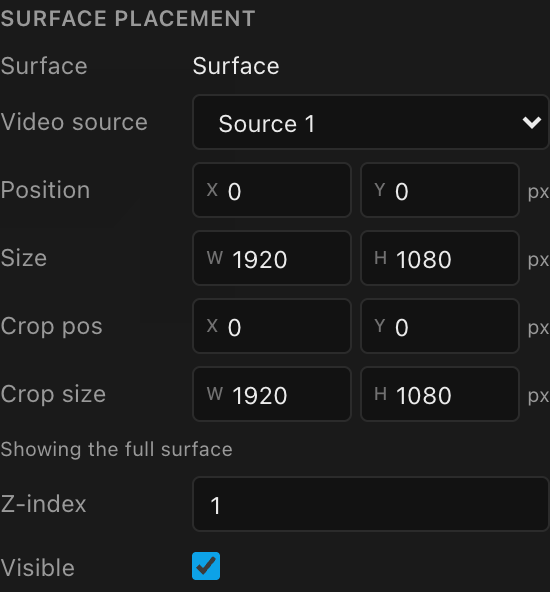
| Field | What it does | Default |
|---|---|---|
| Surface | Which surface this placement shows. Click the name to jump to that surface; the pattern, its colours and overlays are set there, not on the placement. | n/a |
| Video source | Which output this placement is on. On a free placement, picking another re-homes just this placement, the per-slice counterpart to the surface-level dropdown. It's clamped inside the new output and re-packed into free space only if it would overlap an existing placement. Linked placements and slices work differently; see below. | n/a |
| Position | Top-left of the destination rectangle on the output, in px. On a bound slice, typing a new position moves the slice's panels with it. Read-only when one region is spread over several inputs of a stitched processor (Spread across N inputs of this processor as one seamless picture. Position is set by the panels; move those to move it.). | auto-packed into free space |
| Size | The destination rectangle (≥ 1×1). The cropped surface buffer stretches into it. Disabled when linked (the screen footprint drives it). | the surface buffer, clamped to the output |
| Crop pos / Crop size | Which region of the surface buffer this placement shows. Untouched, the placement shows the whole buffer (Showing the full surface); editing any crop field materializes an explicit rectangle (Showing a cropped region) and a Full button resets it. Disabled when linked. | full surface |
| Z-index | Stacking order on the output; higher draws on top. | one above the current top |
| Visible | Hide/show this placement. Hidden = dashed outline in the workbench, skipped entirely by the compositor. | on |
| Link → Linked screen | Link this placement to a screen (see below). | None |
| Detach from screen | Shown on a linked placement. Breaks the link so you can split and crop the picture freely; it stays on the wall (Detach to freely split and crop this video. It stays on the wall.). An unlinked placement shows Not linked to a screen. Select it in the Video tab and use the scissors to split. instead. | n/a |
| Delete placement | Removes just this placement; the surface survives. | n/a |
New placements always auto-pack into free space rather than stacking at the origin. The crop controls are the heart of "pixel surgery": several placements of the same surface can each crop a different region. That's exactly what splitting a placement sets up for you automatically.
Video source on a linked placement or slice
- Linked to a whole screen: the dropdown is a read-out and can't be changed. It names whichever input feeds the processor the screen's panels sit on. Beneath it,
Linked to a screen: the video source follows the screen’s panels.and a line spelling out why, such asRight now those panels are on Processor 2, and Processor 2 is fed by Video Source 1. Re-patch that processor’s input and this follows it. - A bound slice (one piece of a screen split across processors): the dropdown is a real setting. It only lists sources that feed a processor, because panels can only show what a processor carries. Picking one moves the slice's panels onto the processor that source feeds (the same move as Assign to processor in 2D Mapping), and the slice follows them. It keeps its spot when that spot exists on the new output, and otherwise lands at the output's top-left corner. The hint reads
Bound to a panel group: moving it moves the group's panels too. Picking a source moves the whole group onto that source's output, landing at its top-left corner unless it still fits where it was., followed by the same line about which processor feeds it.
On a stitched canvas, a placement covers the whole wall
When a processor stitches several inputs into one canvas, those inputs exist to make one seamless picture surface, so a placement on such a canvas is one object covering the whole composite, not one object per input. In practice that means:
- Position and Size are in canvas pixels, measured across the whole composite. On a
2×2of1920×1080inputs that is a3840×2160space, so a placement can be up to3840wide and can sit at, say,x: 2600, over on the right-hand inputs. - Drag and resize across the seams freely. The picture is not clamped to the input it started on, and dragging it over a neighbouring input moves it rather than re-homing it. Which inputs end up carrying it is worked out for you, live.
- Edges snap to the seams as well as to the canvas bounds and the other placements, so lining a picture up exactly with an input boundary is easy. Hold Alt to snap-free.
- Video source becomes "which processor", not "which input". Picking a different input of the same canvas changes nothing: the picture hasn't moved, so the same inputs still cover it. Picking an input belonging to a different processor moves the placement onto that processor's canvas.
A canvas fed by a single input has no seam to cross, so everything there behaves exactly as it always has: the placement is clamped inside that one output, and the Video source picker re-homes it.
What happens if you change the stitching later
Placements follow the canvas, and the picture never jumps. Stitch more inputs in and existing placements keep their exact on-screen position while gaining the ability to cross the new seams. Take inputs back out and they return to single-output behaviour, clamped back inside the surviving output so nothing is left stranded off the edge where it would silently stop being drawn.
One cable, one frame
A placement belongs to the video source (the cable), not to the processor you happened to arrange it on. A source is one cable carrying one frame, so if the same source feeds two processors, both receive the identical picture: a region you arranged across a screen on one processor shows up, pixel for pixel, on any other processor fed by that cable. Nothing is drawn on one box and left off the other, because that isn't possible in a real rig. (The only exception is the rare layered input mode, where a source is scaled into a window rather than tiled; placements arranged on such a canvas stay with that processor.)
Linking surfaces to screens
A link is a 1:1 relationship between a placement and a physical screen:
- The placement's size snaps to the screen's pixel footprint, and its position drives what the screen's panels sample from the output.
- The surface's buffer resizes to the screen too, so pattern pixels map 1:1 to real panels.
- The surface's Data path / Power path patterns switch from a virtual grid to the screen's real wiring: real strings, port labels, circuits, and disabled panels. See Test patterns.
- Both rows in the sidebar wear the link chip (above), and the placement's Video source becomes a read-out that follows the processor's input, so re-patching that processor's input moves the picture onto the new feed. The app asks first when that would happen; see When a processor's input changes.
Create a link from any of four places: Inspector → Surface → Link (links via the surface's first placement), Inspector → Surface placement → Link, the sidebar's Surfaces + → From Screen, or Screens + → From Surface. Pick None to unlink.
While linked, everything the screen now drives is locked: the surface buffer size, the placement's size and crop, the resize handle, and (except on a bound slice) the per-placement video source. Splitting still works, but only along the screen's panel seams; see Splitting a linked placement.
A screen assigned to several processors shows Follows the linked screen · N processors and gets one bound slice per panel group: placements that follow their panels. Dragging one moves the panels it is bound to: the slice and its panels travel together. The only case that looks like nothing happened is when every panel in the group is a blank/disabled cell or has its mapping position locked. To move a slice to a different processor, use its Video source dropdown or Assign to processor in 2D Mapping. The full story is in Feeding screens video: links & slices and Multi-processor screens.