

Appearance
Exporting from LED.FYI
Everything that leaves the app as a file starts in one place: the Export workbench, the fifth tab in the top bar. It is laid out like the Sheets workbench: a narrow list of what you can make down the left, the thing you are about to make filling the middle.
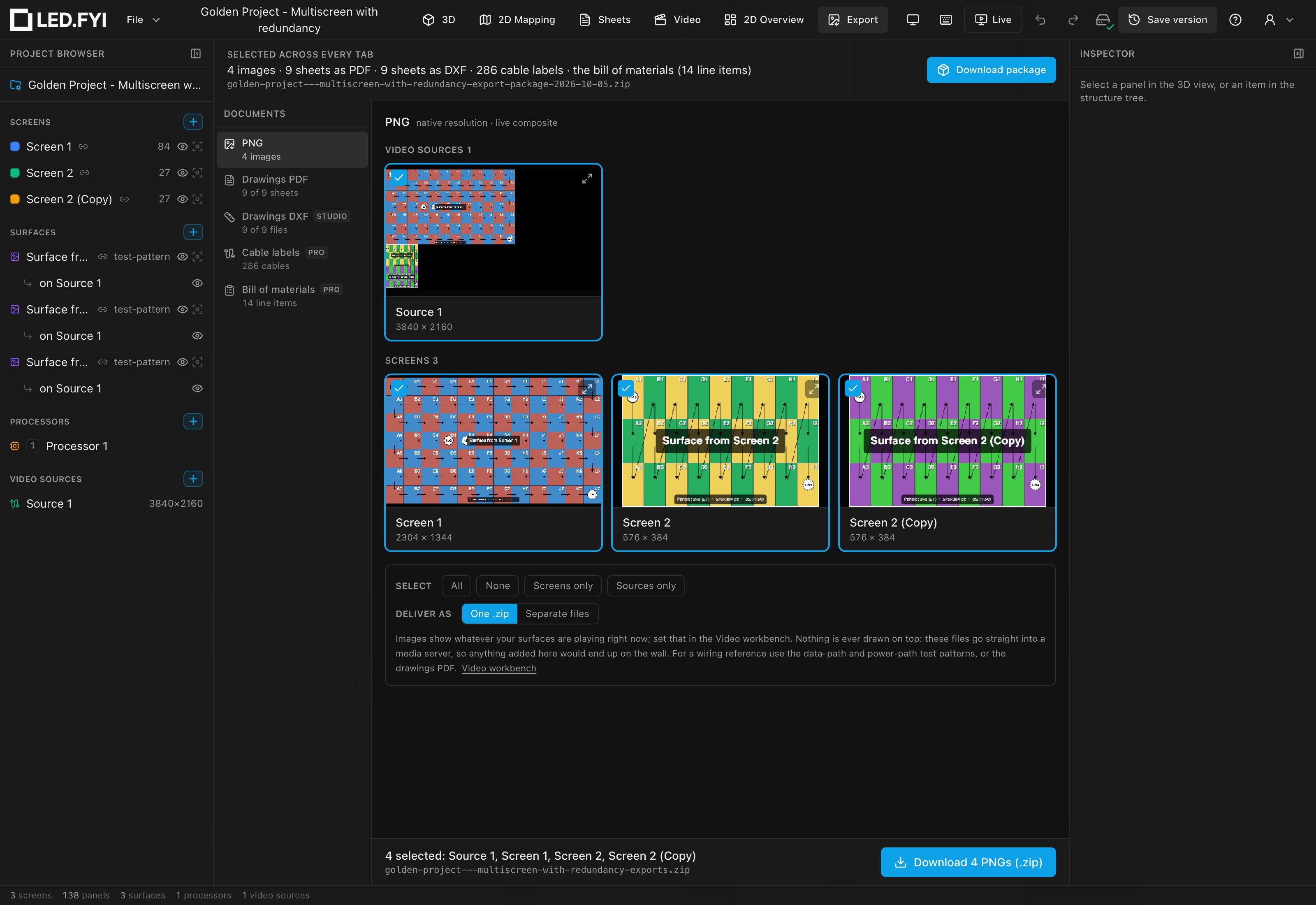
The rail: DOCUMENTS
One list, one heading, one row per thing you can download: pictures first, then drawings, then the two spreadsheets:
| Tab | What it makes | Plan |
|---|---|---|
| PNG | Pixel-exact, native-resolution images of what each video source receives and what each screen displays, one whole-wall image per screen, however many processors drive it | Free |
| Drawings PDF | Your drawing sheets as one multi-page vector PDF, optionally with a scan-to-open QR code | Free |
| Drawings DXF | The same drawing sheets as editable CAD geometry for a drafter | Studio |
| Cable labels | One spreadsheet row per physical cable; feed it to a label printer | Pro and up |
| Bill of materials | The computed parts list as a spreadsheet: a workbook with a tab per section, or one flat CSV | Pro and up |
The bill of materials is the same computation you can already read in the Inspector's BOM (computed) section, which carries an Export spreadsheet… button straight to this tab.
Each row in the rail carries a live read-out of what this project would produce right now: "4 images", "9 of 9 sheets", "286 cables", "14 line items". That answer didn't exist anywhere in the app before. In a cloud-connected build the row also carries the plan badge where one applies; an offline build is fully entitled and shows none.
Two exports live outside the workbench: the project file (.ledproj) downloads from File → Download project, and share links live in File → Share….
The preview is the picker
Every tab shows the real thing it would produce (image thumbnails, page thumbnails, the actual first rows of the label spreadsheet), and ticking one is how you include it. There is no separate checklist to keep in step with the preview, so the picker and the preview can't drift apart.
| Where you are | What you tick |
|---|---|
| PNG | Each video source / screen thumbnail |
| Drawings PDF / DXF | Each drawing page, drawn from the same scene the PDF prints |
| Cable labels | Cable-type chips (each with its own count) and, optionally, which screens |
| Bill of materials | Nothing; the parts list is whatever your design contains; you pick the file format |
Underneath sits that format's options, then a pinned export bar that never scrolls away: it spells out what you're about to get, what the file will be called, and one button that says what it makes.
Download package
Across the top of every tab sits Download package, and the line beside it enumerates what's ticked in each tab:
3 images · 6 sheets as PDF · Drawings DXF excluded (Studio plan) · 286 cable labels · the bill of materials (41 line items)
Pressing it downloads one .zip holding everything on that line, across every format. That is the whole difference between it and the per-tab buttons: those get you one format, this one gets you the lot. Inside, a folder per format:
acme-arena-export-package-2026-08-29.zip
├── images/             the ticked PNGs
├── drawings-pdf/       the one multi-page PDF
├── drawings-dxf/       one .dxf per ticked sheet
├── cable-labels/       the .csv, or one per screen, if that's your Cover
└── bill-of-materials/  the parts-list workbook (or CSV)
Each folder holds exactly what that format's own button would have given you, under the same names: the PDF in the package is the same PDF, scan-to-open QR and all. The archive is named for the project and the day it was made, like the per-format archives are.
Three rules keep the line and the archive the same list, one entry for one entry:
- A tab with nothing ticked isn't listed at all, and with nothing ticked anywhere the button is dead, so an empty archive is never produced.
- A format your plan blocks is named as excluded, with the plan it needs, and is absent from the archive. The package can never contain something your plan doesn't include.
- PDF and DXF wait for the liability acknowledgement, exactly as their own buttons do; until it's ticked they're both named as excluded too. It is a single acknowledgement covering both drawings formats, shown on both tabs; ticking it on either releases both.
If one format fails while the others render, you still get the package, but never quietly. It's named …-partial.zip, a PACKAGE-INCOMPLETE.txt inside names what's missing and why, and the notice says so on screen. Throwing away nine rendered pages because the labels failed helps nobody; re-run just the missing format from its own tab.
Your picks are remembered
Sheet selection, image selection, cable-type toggles, the delivery choice, the parts-list file format and the ticked liability acknowledgement are all remembered per project, on this machine. Leave the workbench (or close the browser) and come back and your picks are still there. They are a preference, not project data: they never touch the .ledproj, never mark a project dirty, and don't travel to teammates.
Progress while it works
A nine-page PDF flattens nine drawings, may mint a share link and upload a copy, then writes the file. The export bar becomes a progress readout for the duration: the stage name ("Preparing pages", "Creating the share link", "Writing the PDF") and, where it counts things, page N of M.
A package is the longest thing the app does, so its bar counts across the whole job rather than restarting at each format: four images, then nine pages, then six drawings reads as one run from 1 / 20 to 20 / 20, with the stage name saying which part it's on.
Where the file goes
In the browser, every export is a normal download. It lands wherever your browser puts downloads, and the browser handles anything after that. In the desktop app each export opens the OS save dialog with the suggested filename filled in, and writes wherever you choose.
The success notice ("Drawings exported", "Parts list exported") appears only once the file has actually been written:
- Cancel the save dialog and nothing is written and nothing is announced; you chose to stop.
- If the file couldn't be written, a red notice names the file and says why, and offers Save as…, which reopens the save dialog with the same content so you can pick another name or folder; a "File saved" notice confirms it once that works. The usual cause is the previous copy still being open in another program. On Windows a PDF open in a viewer is locked, so re-exporting over it fails with "That file is open in another program". Close it there, or save under a new name. The other cases the app names are a folder you have no permission to write to, and a full drive.
A multi-file export that saves separate files (PNGs, DXFs) stops at the first file that isn't written; the files before it are already on disk.
Where each export's content is configured
The Export workbench decides what to download, not what the files contain, but it now names the settings that shape them, with a link to each:
- PNGs contain whatever your surfaces are playing; set that up in the Video workbench. Nothing is ever drawn on top of them.
- PDF and DXF pages are your drawing sheets. Paper size, orientation, standards, print units, title block and branding are configured per drawing set in the Sheets workbench; wiring colours come from Preferences. Changing any of them re-flows every page, which is why they stay set-level rather than becoming export-time switches.
- Cable labels come straight from your wiring: strings, circuits, trunks and redundancy as designed.
- The bill of materials is computed from the whole design; its lengths follow the print units your drawing set is issued in, so the spreadsheet and the PDF in the same packet always agree.
If the project has nothing renderable yet, the PNG tab reads "Nothing to export yet. Add an output or a screen with content."; with no drawing sheets, the PDF and DXF tabs link you to the Sheets workbench.
Export formats by plan
In a cloud-connected build, each export checks your plan before saving, and the rail and tab badges say so before you pick anything, rather than refusing after every box is ticked. A blocked export still shows a notice naming the plan that includes it (for example "Upgrade to Studio to unlock this" for DXF), with a View plans button if you press it anyway.
| Format | Free | Pro | Studio |
|---|---|---|---|
Project file (.ledproj) | ✓ | ✓ | ✓ |
| PNG | ✓ | ✓ | ✓ |
| Drawings PDF | ✓ | ✓ | ✓ |
| Cable labels CSV | No | ✓ | ✓ |
| Bill of materials | No | ✓ | ✓ |
| DXF | No | No | ✓ |
INFO
Plan gates only exist in cloud-connected builds. An offline or unconfigured build is fully entitled: every export format works with no upgrade prompts. See Plans, billing & what each unlocks.
TIP
Looking for a copy of your account data rather than a project export? That's a privacy feature under Your account & profile.