

Appearance
The five workbenches
Everything in LED.FYI is one project: one set of screens, processors, wiring, surfaces and sheets. A workbench is a way of looking at (and working on) that one project. Change something in any workbench and every other workbench updates instantly, because they are all views of the same design.
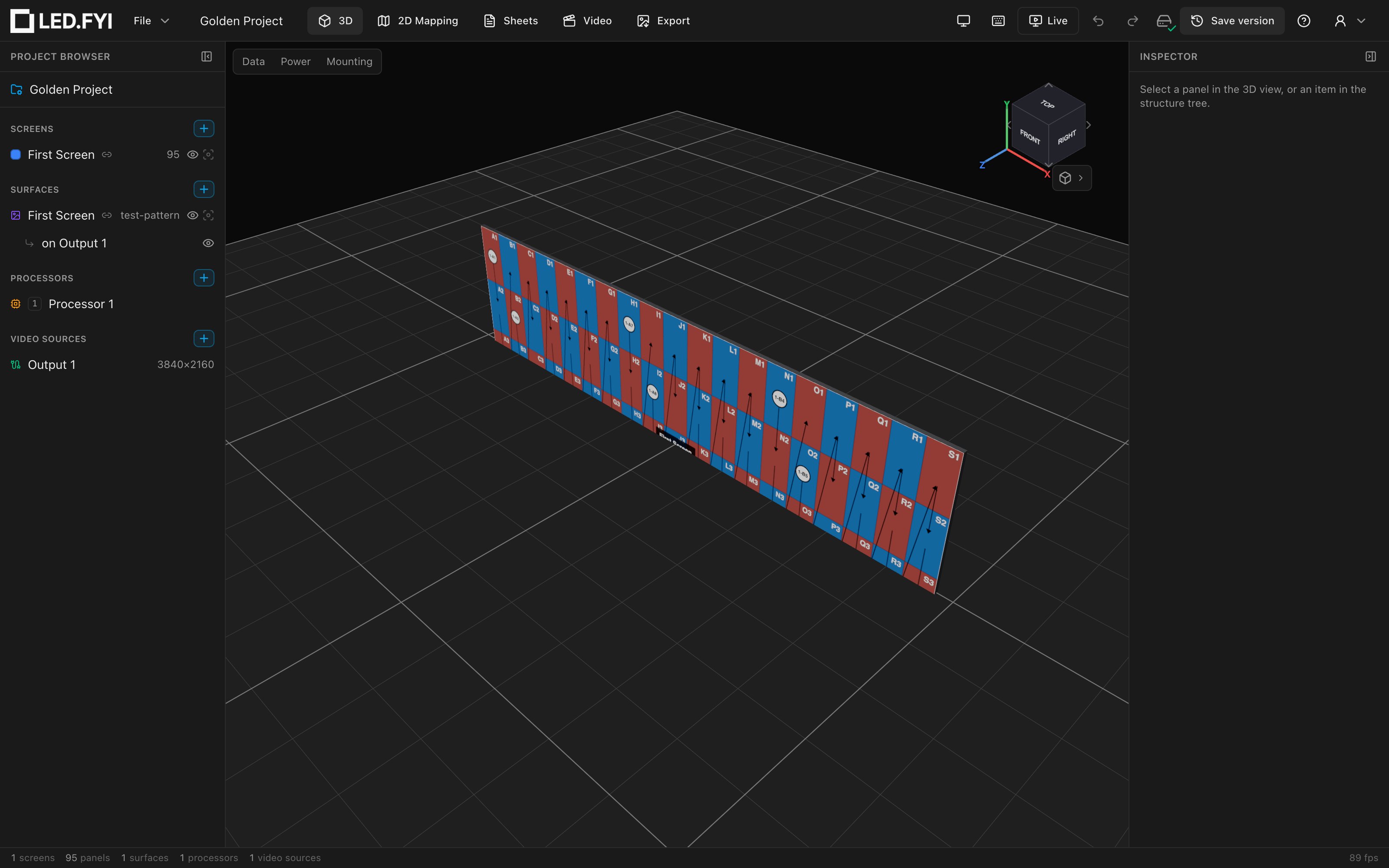
The workbench tabs sit in the top bar. There are six: the five design workbenches, plus Export.
| Tab | Key | What it's for |
|---|---|---|
| 3D | 1 | Real-time previsualization of your walls in space: live content, camera presets, wiring and mounting overlays. The default workbench (on a browser that can't start 3D graphics, the app opens on 2D Mapping instead). See The 3D workbench. |
| 2D Mapping | 2 | The flat, pixel-space view: arrange screens and panels, edit wiring by hand, manage power circuits. See The 2D Mapping workbench. |
| Sheets | 3 | Paperwork: scaled drawings, wiring diagrams, schedules, BOMs and title blocks, ready for PDF and DXF export. See The Sheets workbench. |
| Video | 4 | Content: surfaces, placements on video sources, media and test patterns, plus the Live Output window. See The Video workbench. |
| 2D Overview | 6 | Every screen in the project at once, each laid flat and showing its live video. Arrange the screens freely, select panels across them, and switch panels on and off. See The 2D Overview workbench. |
| Export | 5 | Not a design view; the export hub for PNGs, drawings, DXF, cable labels and the bill of materials. See Exporting. |
Switching workbenches
- Click a tab in the top bar.
- Press the bare number key:
1= 3D,2= 2D Mapping,3= Sheets,4= Video,5= Export,6= 2D Overview. These work from anywhere in the app (they are suppressed while you are typing in a field). 2D Overview sits between Video and Export in the tab strip but takes6: Export has had5since the app shipped, and renumbering a shortcut people already use would be the worse trade. - Open the command palette with
⌘Kand run Go to 3D, Go to 2D Mapping, Go to Sheets, Go to Video, Go to 2D Overview or Go to Export.
One workbench fills the workspace at a time; there is no split or quad-view layout. If you want a second, always-on view of your content (for a client monitor or a second display), use the Live Output window (⌘⇧O) instead.
Whatever workbench you are in, the left sidebar shows the project structure tree, the Inspector on the right edits whatever is selected, and the status bar along the bottom shows project counts and the current selection.